
How Multilingual Signing Works in BoloSign — From Setup to Signed Document
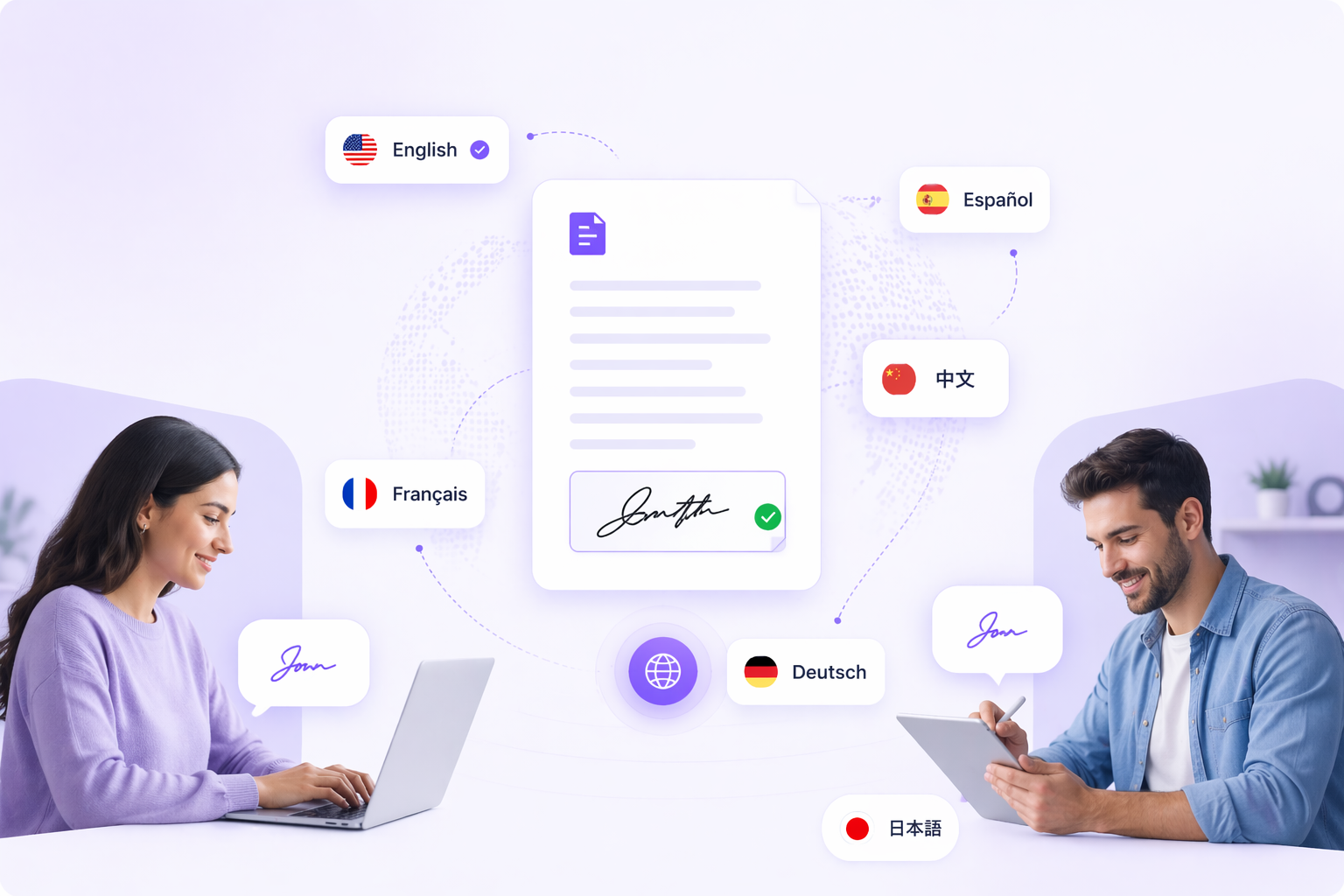
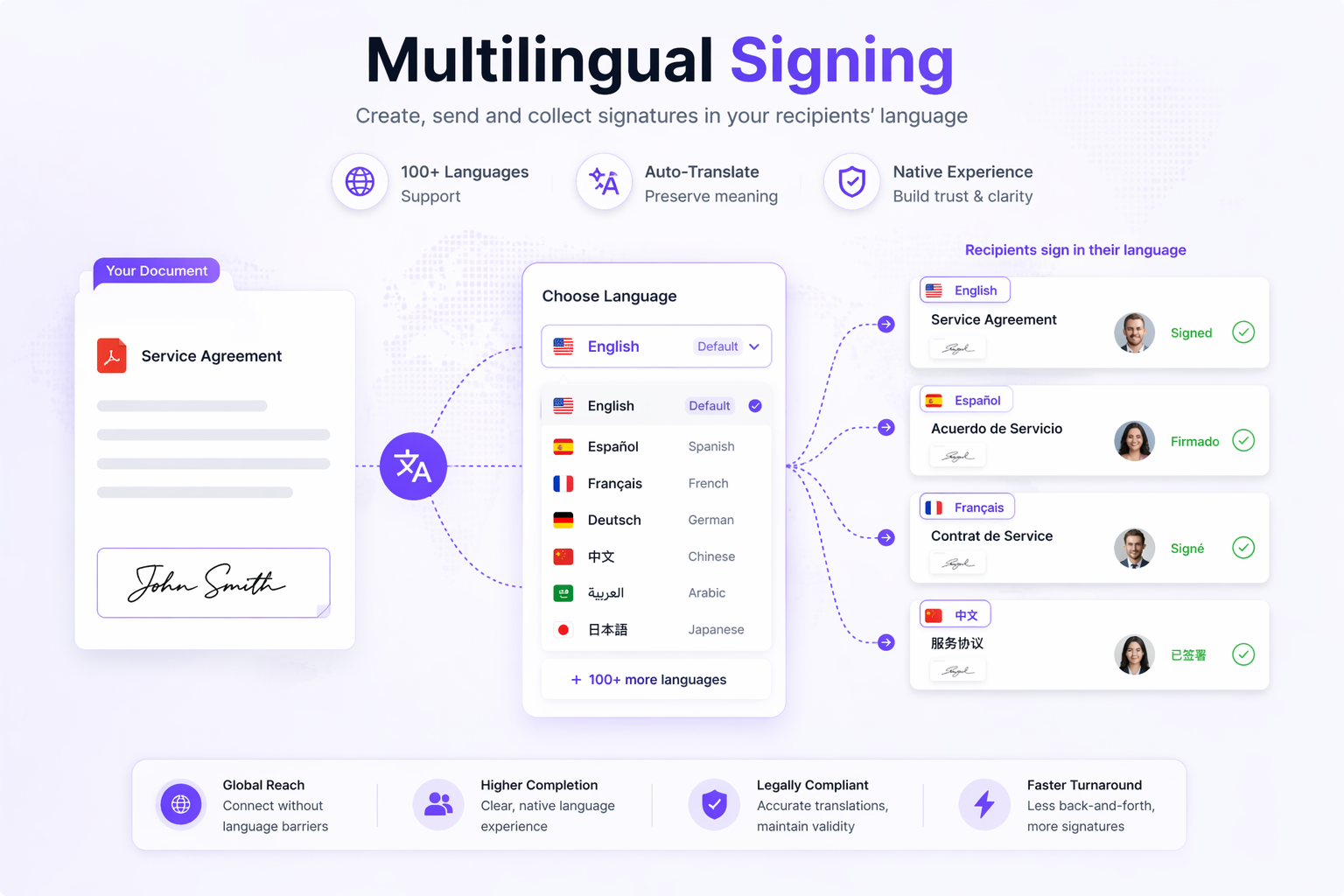
BoloSign supports multilingual signing experiences. Change the language of your PDF forms and signing interface with one click. Senders can create documents in any language. The signing interface adapts to the signer's preferred language. Support for
In the document editor, click the language selector to change the form language. The signing interface (buttons, instructions, prompts) displays in the selected language. For PDFs, the document content stays in whatever language you wrote it in — the BoloSign interface elements around it (sign here prompts, buttons, instructions) translate to the signer's language.
Once configured, Multilingual Signing integrates seamlessly with BoloSign's broader workflow. Every document processed through Multilingual Signing automatically generates a tamper-proof audit trail recording who interacted with the document, when each action occurred (server-side timestamps, not the signer's local clock), the IP address and device fingerprint of every participant, and a cryptographic SHA-256 hash proving the document was not modified after signing. This Certificate of Completion is attached to every signed document and is admissible as evidence under Federal Rule of Evidence 901 in US courts and under EU eIDAS regulations for cross-border enforceability.
Multilingual Signing also works alongside BoloSign's other capabilities. Combine it with reusable templates to eliminate repetitive setup work. Use it with bulk send to process high volumes in one click. Connect Google Sheets integration for real-time tracking without opening the dashboard — every event (sent, viewed, signed, declined, reminded) logs to your spreadsheet automatically. Enable automated reminders to follow up with non-signers at your configured interval. The result is a complete document workflow — creation, sending, signing, tracking, and storage — that runs with minimal manual intervention from your team.
BoloSign is ISO 27001:2022 certified and SOC 2 Type II compliant, meaning your documents processed through Multilingual Signing meet the security standards required by regulated industries including healthcare (HIPAA BAA available), finance (SOX compliance), and organisations processing personal data under GDPR. This is the same level of independent security certification held by DocuSign and Adobe Sign — available on BoloSign at pricing accessible to small and mid-market teams, not just enterprise budgets. Trusted by 50,000+ businesses worldwide with a 4.9/5 Capterra rating.
Who Benefits Most from Multilingual Signing — and What Problem Does It Solve?
Multilingual Signing is built for International businesses, multinational companies, immigration services. The core problem it solves: English-only signing interfaces alienate non-English speakers and reduce completion rates.
The teams that get the most value from Multilingual Signing are those handling documents at scale — not 5 contracts per month, but 50, 200, or 1,000. Here is how different teams use it:
Real estate professionals use Multilingual Signing for purchase agreements, listing contracts, disclosure forms, and lease agreements. In fast-moving markets where speed determines whether you close a deal, Multilingual Signing cuts document turnaround from days to hours. Mobile signing lets clients sign at open houses. Audit trails provide legal defensibility if a transaction is challenged. Teams report saving 15-30 minutes per transaction across 10-40 deals per month — that is 5-20 hours recovered every month, directly translating to more deals closed.
Healthcare organisations use Multilingual Signing for patient consent forms, HIPAA authorisations, telehealth consent, and provider credentialing. With BoloSign's HIPAA BAA add-on, healthcare teams process Protected Health Information compliantly. Patients complete paperwork on clinic tablets or from their phones before appointments, eliminating waiting room bottlenecks and improving the patient experience from the first interaction.
HR and staffing teams use Multilingual Signing for offer letters, NDAs, employee handbooks, benefits enrollment, direct deposit authorisations, and annual policy acknowledgements. During seasonal hiring waves, Multilingual Signing combined with bulk send processes 200+ new hire packets in a single afternoon — each personalised with the employee's name, role, start date, and department — instead of a week of manual one-by-one sending.
Legal and accounting firms use Multilingual Signing for client retainer agreements, engagement letters, NDAs, tax authorisations, and settlement documents. Signing order ensures partner review before client delivery, and the audit trail satisfies bar association and regulatory documentation requirements. During tax season, accounting firms process hundreds of engagement letters using Multilingual Signing with bulk send.
Insurance agents and financial advisors use Multilingual Signing for policy applications, renewal notices, advisory agreements, and compliance forms. During annual renewal season, Multilingual Signing handles the entire client book without per-envelope overage fees — a critical advantage when DocuSign charges per envelope and Adobe Sign caps transactions.
The Real Cost Difference — Multilingual Signing on BoloSign vs DocuSign and Adobe Sign
Most platforms default to English with limited language options. BoloSign supports 10+ languages with one-click switching.
The pricing difference between BoloSign and competitors is not just about the monthly subscription — it is about the total cost of ownership when you factor in per-user charges, per-envelope limits, add-on fees for features that should be standard, and the cost of third-party tools needed to fill feature gaps.
DocuSign charges $25-40 per user per month. For a 10-person team, that is $250-400/month ($3,000-4,800/year) before add-ons. Bulk send costs an extra $60+/month. SMS delivery costs extra. Google Sheets tracking is not available at any price — you need Zapier ($20+/month) as middleware, adding complexity and another subscription to manage. DocuSign's Standard plan limits envelopes to 100 per user per year. A busy 10-person team sending 200 documents per month burns through that allowance in 5 months and faces overage charges or a forced upgrade to Business Pro at $40/user/month.
Adobe Sign charges $14.99-29.99 per user per month with mandatory annual billing — no monthly flexibility. Team plans cap at 150 transactions per user per year. For a 10-person team sending 200 documents per month (2,400/year), the 1,500-transaction team cap means overages or an Enterprise upgrade at undisclosed pricing that typically costs 2-3x the listed rate. HIPAA compliance is only available on Enterprise plans. The AI Assistant feature costs an additional $4.99/user/month.
BoloSign includes Multilingual Signing and virtually every other feature in the team plan at a fraction of these costs. No per-user fees — add 5 or 50 team members without your bill changing. No per-envelope limits — send 10 or 10,000 documents per month. Google Sheets integration included free. Bulk send included. SMS delivery available. Custom branding included. AI field mapping (Map PDF AI) included. HIPAA BAA available as an affordable add-on. The same ISO 27001 and SOC 2 certifications — at pricing that works for small and mid-market teams.
For teams currently paying $3,000-5,000/year on DocuSign, switching to BoloSign is not a downgrade in capabilities — it is the same core features at dramatically lower cost, plus capabilities like Google Sheets tracking, form building, and custom feature development that DocuSign does not offer at any price.
Setting Up Multilingual Signing — A Complete Step-by-Step Walkthrough
Getting started with Multilingual Signing takes under 5 minutes. No training sessions, no implementation consultants, no onboarding calls required.
Step 1: Log in and navigate to Multilingual Signing. Go to signature.boloforms.com and log into your account. The free trial gives full access for 7 days with zero feature restrictions — no credit card required. Multilingual Signing is accessible from the main dashboard. The interface is designed so that any team member can find and use it without training or documentation.
Step 2: Prepare your document. Upload a PDF document or select an existing template from your library. If this is a document type you will use repeatedly — contracts, agreements, waivers, consent forms, engagement letters — save it as a reusable template so you never set up fields again for that document type. For new document types, use Map PDF AI to automatically detect and place signature fields, text inputs, dates, checkboxes, and initials in under 30 seconds instead of manually dragging each field onto each page.
Step 3: Configure your workflow. Adjust settings specific to your use case: set signing order (sequential or parallel) for multi-signer documents, add custom branding (your logo and colours appear on the signing page and email notifications), configure automated reminder intervals (1, 3, 5, or 7 days) for non-signers, or set document expiry dates for time-limited offers. These settings are saved per template, so you configure once and every future send uses the same workflow.
Step 4: Send and track. Enter recipient details (name, email, phone number for SMS delivery) or upload a CSV for bulk operations. Click Send. Every recipient gets their own unique, secure signing link. Monitor status from the BoloSign dashboard — or connect Google Sheets for automatic real-time tracking. Every event (sent, viewed, signed, declined, reminded) logs to your spreadsheet without manual intervention. Build conditional formatting in your sheet for instant visual status across your entire portfolio.
Step 5: Store, comply, and close. Once signed, download the completed document with the Certificate of Completion (audit trail) attached. Documents auto-save to Google Drive, OneDrive, or Dropbox if cloud storage integration is enabled. Organise documents into folders by client, project, or document type. The audit trail provides court-admissible evidence of the signing event — meeting requirements under the US ESIGN Act, UETA, EU eIDAS, and GDPR.
Is Multilingual Signing Secure Enough for Healthcare, Finance, and Regulated Industries?
Yes. Multilingual Signing is backed by ISO 27001:2022 certification and SOC 2 Type II compliance — independently audited, not self-assessed. Every document generates a tamper-proof audit trail. HIPAA BAA available. GDPR, eIDAS, and ESIGN Act compliant.
Security in BoloSign is not a premium add-on gated behind enterprise pricing — it is built into the platform at every tier. Every document processed through Multilingual Signing is encrypted using AES-256 encryption at rest and TLS 1.2+ in transit. The tamper-proof audit trail records every action with server-side timestamps (NTP-synchronised, not the signer's local clock), source IP addresses, device fingerprints (browser, operating system), email verification status, and a cryptographic SHA-256 hash of the document before and after signing — providing mathematical proof that the document was not modified after the signature was applied.
For healthcare organisations: BoloSign offers a HIPAA Business Associate Agreement (BAA) as an add-on, enabling compliant processing of patient consent forms, intake documents, telehealth authorisations, and any document containing Protected Health Information. The audit trail satisfies HIPAA Administrative Safeguard documentation requirements. Many competitors — including Adobe Sign — restrict HIPAA compliance to Enterprise plans with undisclosed pricing. BoloSign makes it accessible.
For financial services: the audit trail provides the evidentiary record required under SOX for financial document controls and SEC regulations for advisory agreements. Identity verification options (email verification, SMS OTP, custom access codes) provide the signer authentication that financial regulators expect. Combined with Google Sheets integration, compliance teams get automatic audit logs without maintaining separate tracking systems.
For legal professionals: BoloSign's Certificate of Completion is designed to meet the authentication standard under Federal Rule of Evidence 901, which requires only that the proponent produce evidence sufficient to support a finding that the document is what it claims to be. As demonstrated in federal court cases like Schrock v. Nomac Drilling and Obi v. Exeter Health Resources, detailed e-signature audit trails have been pivotal in confirming signature authenticity and rejecting forgery claims.
For EU-based organisations: BoloSign meets the requirements for Simple Electronic Signatures (SES) under eIDAS, which are admissible as evidence in court across all 27 EU member states when supported by adequate documentation of the signing process. GDPR-compliant data handling ensures personal data collected during signing is processed lawfully, with appropriate retention and deletion policies.
BoloSign's security infrastructure is independently audited by accredited third-party auditors — not self-assessed or self-certified. ISO 27001:2022 and SOC 2 Type II certifications require rigorous examination of security controls, access management, data handling, incident response, and business continuity. This is the same certification standard held by DocuSign, Adobe Sign, and other enterprise platforms — available on BoloSign at pricing that does not require an enterprise budget.
Multilingual Signing: BoloSign vs DocuSign vs Adobe Sign
| Feature | BoloSign | DocuSign | Adobe Sign |
|---|---|---|---|
| Multilingual Signing included | Yes — team plan | Varies (often add-on or premium) | Higher tiers / Enterprise only |
| Pricing model | Flat team rate (no per-user) | $25-40/user/month | $14.99-29.99/user/month (annual) |
| Document limits | None | 100 envelopes/user/year (Standard) | 150 txn/user/year (Teams) |
| Google Sheets tracking | Included (native, free) | Not available | Not available |
| SMS delivery | Available | Extra cost add-on | Limited |
| Tamper-proof audit trail | Yes — ISO 27001 certified | Yes | Yes |
| AI field detection | Included (Map PDF AI) | Not available | Limited |
| Custom feature development | Ships within 1 week | Product roadmap (3-12 months) | Not available |
Multilingual Signing — Key Takeaways
- Multilingual Signing: BoloSign supports multilingual signing experiences. Change the language of your PDF forms and signin
- Included in BoloSign's team plan — no per-user fees, no per-envelope limits
- Tamper-proof audit trails on every document — ISO 27001 & SOC 2 certified
- Works with templates, bulk send, Google Sheets, SMS delivery, and reminders
- Same security certifications as DocuSign and Adobe Sign — at a fraction of the cost
- Free 7-day trial with full access — no credit card, no feature restrictions
Pro Tips
Test Multilingual Signing with a real document during the free trial — not a sample file. Real documents reveal actual time savings that test files cannot simulate. Most teams see the value within the first 10 minutes.
Combine Multilingual Signing with Bulk Send for the strongest workflow. Teams using both together report 50-70% reduction in document processing time compared to using either alone.
Connect Google Sheets before you start — it takes 2 minutes and gives you a free, auto-updating document dashboard. This single integration saves 3-5 hours per week of manual status checking for teams managing 50+ documents.
For time-sensitive documents, add SMS delivery alongside email — SMS gets 98% open rates vs 20% for email. The difference between a signature in 30 minutes and waiting 3 days.
If your team has a unique workflow need, contact BoloSign before assuming it is not possible. Custom features ship within 1 week — not 6 months on a product roadmap.
Watch BoloSign in Action
See how easy it is to use Multilingual Signing
What Our Customers Say
Join thousands of teams that use BoloSign daily.
"BoloSign completely changed how we handle document signing. The interface is intuitive, and our clients love the mobile-friendly experience. Highly recommend!"
Sarah Jenkins
Operations Director
"The features alone saved us over 20 hours a week during onboarding. Support is responsive and the pricing is completely transparent."
Michael Chang
HR Manager
"We switched from DocuSign and haven't looked back. It has all the features we need without the confusing enterprise-level pricing structures."
Emily Roberts
Small Business Owner
Frequently Asked Questions
Everything you need to know about Multilingual Signing
Ready to try Multilingual Signing?
Start your 7-day free trial. No credit card required.