

How Do You Redline a Document the Right Way
Learn how do you redline a document with Track Changes, Compare, comment best practices, and CLM tools. Step-by-step guide for legal, sales, and HR teams.

Tired of nonsense pricing of DocuSign?
Start taking digital signatures with BoloSign and save money.
You're looking at a Word file named Contract_v3_FINAL_reviewed.docx, but nobody can tell you whether it's the latest version. Sales edited the payment terms, procurement changed the renewal language, and legal added comments in a file that came through a separate email thread. The contract may be technically marked up, yet the negotiation still lacks a reliable record of what changed, who approved it, and which draft should control.
That's the answer to how do you redline a document. You don't just turn on Track Changes. You establish a trustworthy baseline, make visible edits, attach decisions to the relevant clauses, compare versions deliberately, and produce a clean execution copy without destroying the negotiated history.
Microsoft Word remains practical for many reviews, especially when the counterparty expects a .docx file. The process becomes harder when several people work in parallel, comments remain unresolved, and signature-ready PDFs circulate beside editable drafts. The workflow below covers Word mechanics, source-of-truth discipline, accessible review, AI assistance, and the point at which contract lifecycle management becomes more reliable than email attachments.
The Email-Attachment Reality Behind Redlining
A typical redline begins innocently. A vendor sends a Word agreement, an account executive forwards it to legal, counsel saves a new copy, and procurement adds its own edits before sending the file back. Within a short time, several documents may exist, each with a plausible filename and each containing language that matters.
The problem isn't that people are careless. The problem is that email treats documents as attachments rather than as controlled records. One reviewer may work from the received draft while another works from a version that already includes unapproved changes. A comment in the document may conflict with a decision buried in an email, and a clean copy may be mistaken for an agreed copy only because it has no visible markup.
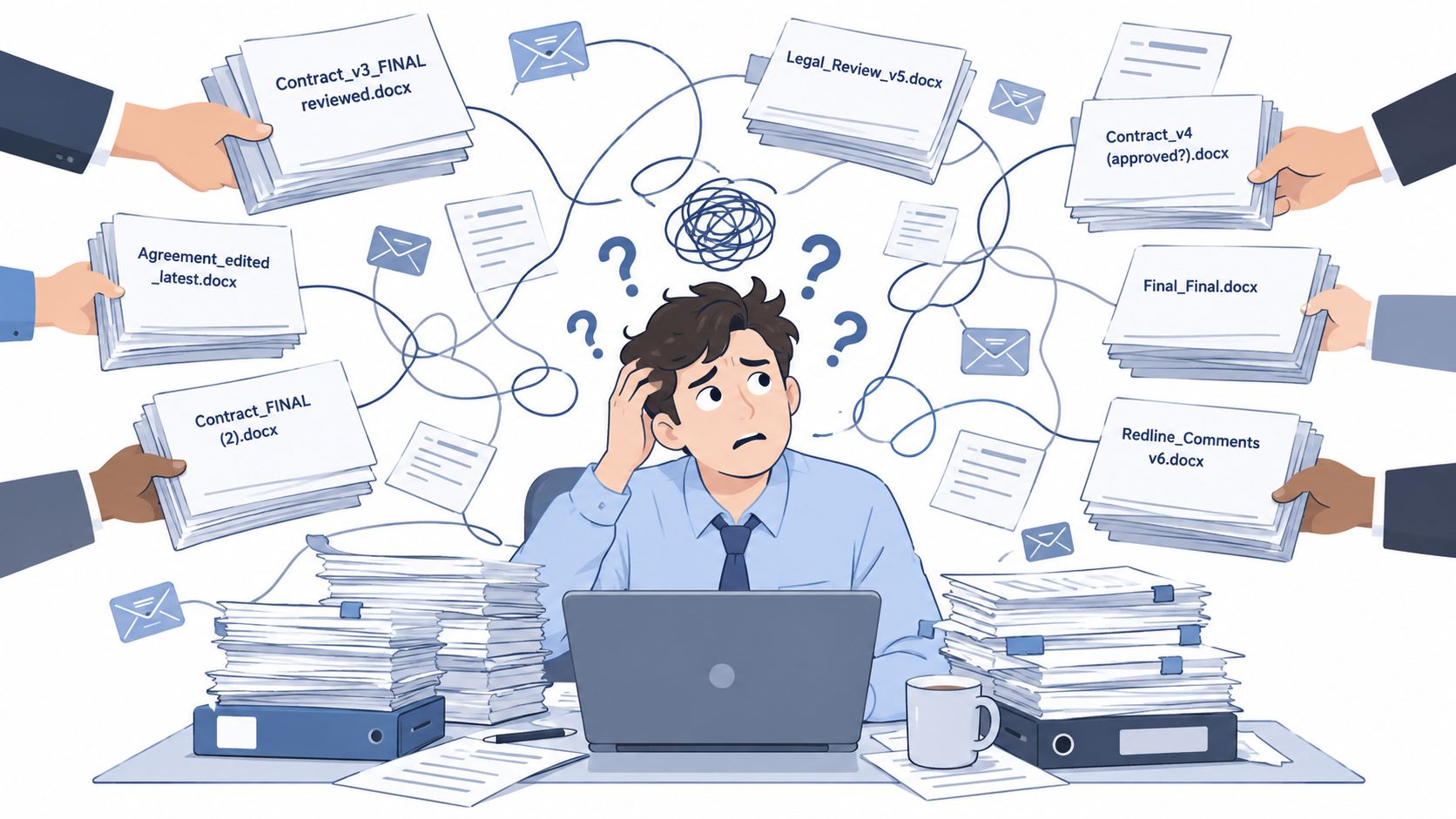
Why a marked-up file can still be ambiguous
Redlining is a negotiation method that preserves additions, deletions, replacements, and comments while the parties work toward agreed language. A redline is an active, negotiable draft with reviewer context. A blackline generally compares two versions and displays differences without exposing the full editing history. That distinction matters because a blackline can tell you what differs, but not necessarily why a reviewer proposed the change or which version was used as the starting point. Concord's explanation of redlines and blacklines provides useful context on that difference and the historical origin of the terminology.
The most common failure is comparing the wrong files. A team may compare the latest counterparty draft against an old internal draft, producing a document that appears complete while omitting changes already agreed in the intervening version. “No visible redline” also proves very little. Someone may have accepted tracked changes, edited with tracking disabled, changed a table, or altered formatting that a basic visual scan doesn't reveal.
A manageable workflow
The cure is not more filenames. It's a deliberate chain of custody:
- Preserve the baseline: Keep the received file unchanged.
- Create a working copy: Make internal edits only in a clearly labeled duplicate.
- Record decisions in context: Use comments for rationale, questions, approvals, and fallback positions.
- Compare against the last agreed draft: Don't compare against whichever file is easiest to find.
- Separate negotiation from execution: Retain the redline and generate a clean signable copy only after approval.
That method works whether you're reviewing a staffing agreement, a healthcare services contract, a property management form, or a logistics master services agreement. Word can support it, but only if the team treats version control as part of legal review rather than as administrative cleanup.
Track Changes and Compare Documents in Microsoft Word
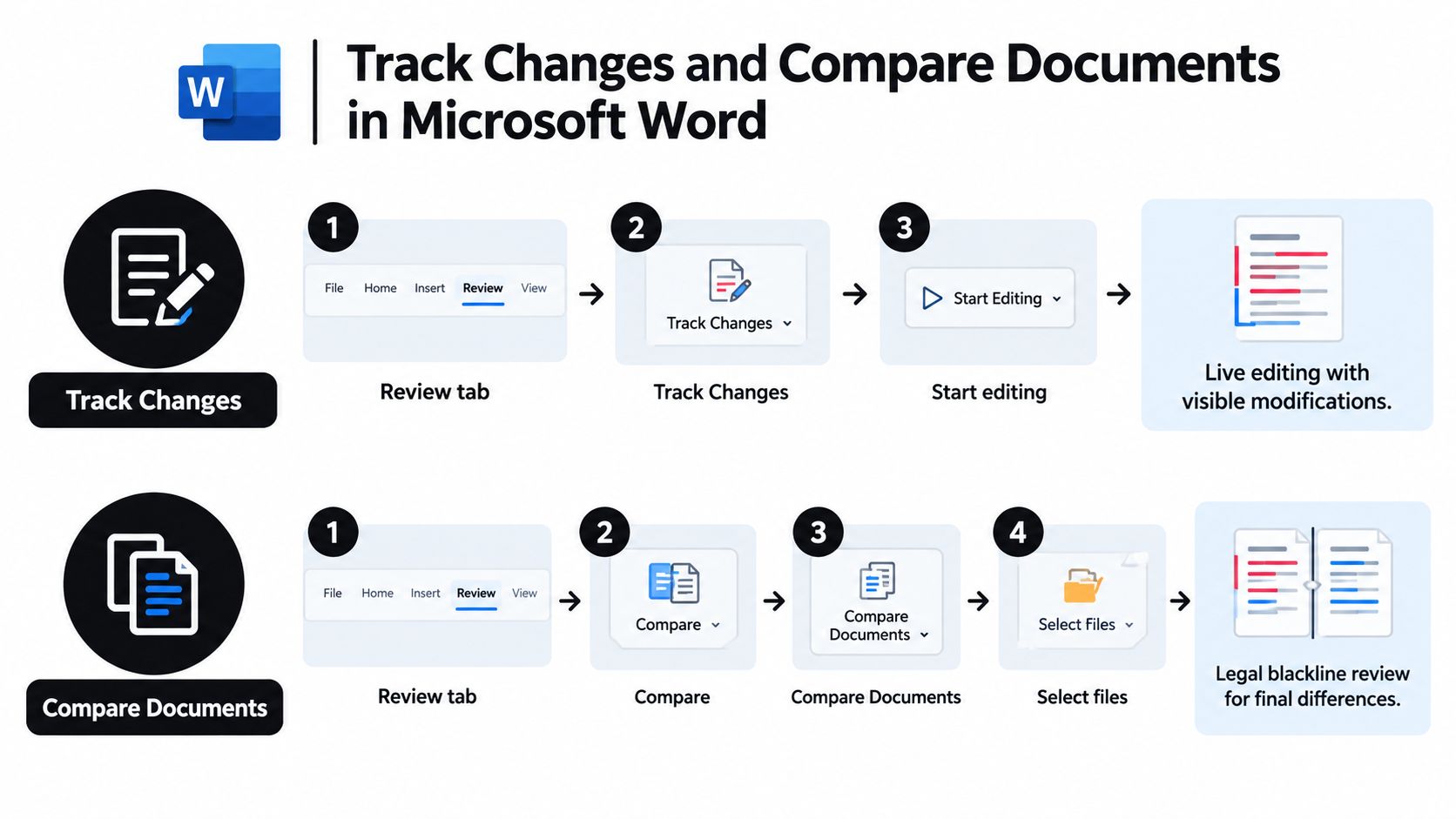
Word gives you two related but different tools. Track Changes records edits as you make them. Compare Documents creates a separate comparison document from two source files. Use the first when you're proposing changes directly in a live draft. Use the second when someone sends a revised file and you need to identify differences against a known baseline.
Use Track Changes for active negotiation
Start by opening the correct editable source file. Save the original in a protected location, then create a working copy with a descriptive filename. In the working copy, select Review > Track Changes before changing any text. Confirm that Word is recording revisions, and choose a markup view that lets you inspect insertions, deletions, comments, and formatting.
Make the smallest edit that achieves the commercial objective. Word generally displays additions with underlining and deletions with strikethrough, while comments sit alongside the relevant language. That visibility lets the counterparty evaluate a proposed replacement rather than guess which wording disappeared.
Use comments for context, not for hidden negotiation notes. A useful comment might explain why a liability provision needs a defined cap, ask the business owner to confirm a service level, or identify a fallback position for governing law. Keep the operative clause readable, and keep the decision conversation attached to the exact text under discussion.
Use Compare Documents for a controlled blackline
When a counterparty returns a modified file, don't overwrite your baseline. Open Word and select Review > Compare > Compare Documents. Designate the unchanged file as the Original document and the incoming file as the Revised document, then create a new comparison document. Word leaves both source files unchanged and presents the differences as tracked revisions.
For a commercially readable comparison, review the available settings rather than accepting defaults blindly. Depending on the document and the purpose of the review, inspect options for formatting, comments, tables, headers, footers, footnotes, fields, text boxes, whitespace, and moved text. Word's comparison capabilities expose these categories because a visual scan of the main paragraphs can miss material changes in a table, footer, or field.
Practical rule: Compare only files whose status you can explain. If you can't identify the baseline and the revised draft, stop and resolve the version question before assessing the legal language.
Run three review passes
A repeatable Word review works best as three separate passes:
- Structural completeness: Check clauses, section order, exhibits, schedules, tables, headers, footers, footnotes, signature blocks, and defined terms.
- Substantive risk: Review scope, pricing, term, renewal, liability, indemnities, confidentiality, data protection, intellectual property, audit, termination, governing law, and disputes.
- Consistency and operability: Test cross-references, notice details, dates, currencies, service levels, precedence language, and every defined term.
The sequence prevents the reviewer from getting trapped in wording debates while a schedule is missing or a signature field points to the wrong party. For a detailed Word-specific walkthrough, see this guide to redlining a document in Word. You can also use the following video as a visual reference for the mechanics.
Building a Defensible Source of Truth with Version Control
The hardest redline problem is governance. Editing is visible when Track Changes works correctly. Version identity is invisible unless someone establishes it deliberately.
Use three distinct document roles. The baseline is the received file, preserved exactly as delivered. The working copy is the internal draft where your team proposes revisions. The counterparty draft is the external version returned during negotiation. These roles can be represented by separate files in Word or by records in a contract management platform, but they shouldn't be blended casually.
Preserve the chain of custody
Before editing, verify that the draft contains the expected exhibits, schedules, defined terms, and signature blocks. Record the sender, receipt date, document title, and version status in your matter or contract record. File names should communicate status rather than merely chronology, for example Vendor_MSA_baseline_received, Vendor_MSA_internal_redline, or Vendor_MSA_counterparty_2026-10-12.
The exact naming convention matters less than consistency. What matters is that nobody mistakes a clean review copy for an approved execution copy, and that every comparison can be traced to the prior agreed draft.
Compare against the last agreed version
After each negotiation round, identify the last draft that the business and legal owners approved. Compare the next incoming version against that file, not against the original baseline unless the original is still the agreed reference. This prevents an accepted edit from disappearing into the background and helps identify whether the counterparty reintroduced rejected language.
A practical acceptance test is simple:
- Clean-copy comparison: Compare the approved clean copy with the final execution copy.
- Issue search: Look for unresolved comments, tracked changes, placeholders, duplicate clauses, broken cross-references, and inconsistent defined terms.
- Record retention: Keep the negotiated redline, approval record, and final signed document together.
A tidy document isn't necessarily a controlled document. Control comes from knowing which file was authoritative at every negotiation stage.
This discipline becomes more important when an agreement shifts liability or allocates responsibility for security incidents. For broader context on how liability can move through information-security decisions, AI Frontiers on shifting liability is a useful resource. The point isn't to turn every contract into a forensic exercise. It's to make material deviations explainable after signature.
Teams that maintain a searchable, permissioned record can reduce the temptation to treat email as the archive. A structured contract repository management workflow should preserve source files, versions, comments, approvals, and final records without forcing reviewers to reconstruct the history from inboxes.
Comment Etiquette and Substantive Versus Mechanical Edits
Comments are where a redline becomes a negotiation record. A tracked deletion shows what changed, but it doesn't tell the other side whether the edit responds to risk, corrects a drafting error, or reflects an approved commercial position.
Start by separating substantive edits from mechanical edits. Substantive changes affect exposure, money, obligations, or remedies. Mechanical edits improve clarity or presentation without changing the bargain.
| Edit category | Typical examples | Comment approach |
|---|---|---|
| Substantive | Liability caps, payment obligations, termination rights, data protection, governing law | Explain the concern, requested outcome, owner, and fallback |
| Mechanical | Punctuation, formatting, numbering, grammar, capitalization | Group related fixes or leave a concise note when context helps |
| Operational | Notice details, service levels, dates, currencies, exhibit references | Identify the source of truth and the person who must confirm it |
Turn comments into decision records
For a material change, write the comment so another reviewer can understand the decision without opening an old email. Include the location, proposed language, business rationale, risk classification, owner, fallback position, and approval threshold. You don't need to put those labels into every comment, but the information should be present.
For example, a comment on a limitation-of-liability clause might explain that the proposed cap is intended to align exposure with the commercial scope, identify exclusions that need separate treatment, assign approval to legal and finance, and state what position is acceptable if the counterparty rejects the first proposal. That is more useful than “Please review” or “Need better language.”
Negotiate related clauses together
Contract provisions rarely operate independently. A change to the liability cap may affect exclusions, indemnity scope, insurance requirements, consequential damages, and the remedies available after a data incident. Redlining one sentence while ignoring its linked provisions can create a document that looks polished but doesn't work as a package.
When a related set of edits is under discussion, group the changes conceptually and refer to the connected clauses in the comments. Accept a concession only after checking its effect elsewhere in the agreement. This is particularly important in healthcare, staffing, and logistics arrangements where operational duties and risk allocation often sit in different sections.
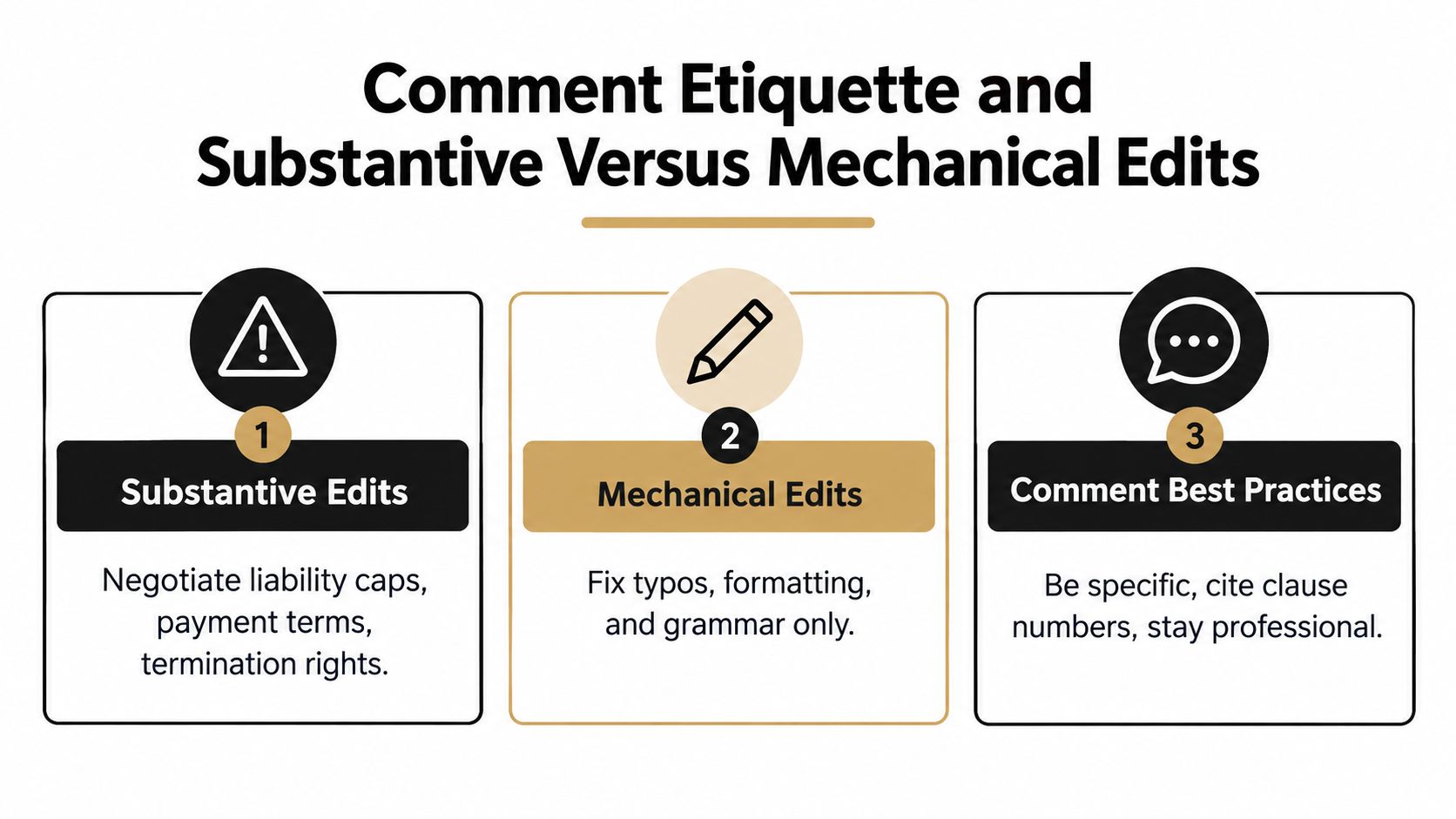
A professional comment is specific, neutral, and actionable. It identifies the clause, states the issue, asks for a decision or proposes a solution, and avoids sarcasm or unexplained shorthand. Once the issue is resolved, accept or reject the related revision, resolve the comment, and preserve the redline separately from the clean copy.
Accessibility, AI Assistance, and the Limits of Track Changes
Track Changes is a record of edits, not a complete review method. A redline that depends on color, margin balloons, or visual strike-through can be difficult to interpret for someone using a screen reader or keyboard-only navigation. Word provides separate guidance for navigating tracked changes, comments, and accept or reject actions with a screen reader, which signals an important practical point. Accessibility requires an intentional process.
Make changes reviewable without relying on color
Use the Reviewing Pane to expose the sequence of revisions and comments. Keep comments tied to precise clause language, and state what decision is required rather than relying on visual placement. Don't use color alone to distinguish internal notes, counterparty changes, or unresolved issues. The clean execution copy should be accompanied by an accessible change summary when a reviewer needs a nonvisual explanation of the material decisions.
This matters across distributed legal, HR, procurement, and operations teams. A staffing coordinator may need to confirm an employment document, while a healthcare administrator reviews a data-processing obligation and a procurement manager checks payment terms. Each person should be able to identify the change, the responsible reviewer, and its status without interpreting a color scheme.
Use AI as a first-pass assistant, not an approver
AI can help locate nonstandard clauses, compare language against a playbook, summarize deviations, and suggest alternative wording. It can support AI contract review by reducing mechanical searching, but it can't take responsibility for the commercial decision or the final legal judgment.
A 2025 survey of 360 legal professionals reported that 65% were not yet using AI for tasks such as redlining, drafting, or clause checks, while 30% used AI for extraction, compliance checks, or redlining and 5% used it for draft generation. These figures describe adoption in that survey, not proof that automated output is safe to send without review.
Human verification should cover at least four questions:
- Context: Does the suggestion fit the transaction, counterparty, and jurisdiction?
- Consistency: Does it work with definitions, cross-references, schedules, and related clauses?
- Explainability: Can the reviewer state why the change was proposed and accepted?
- Accessibility: Can every intended reviewer inspect the change and its decision status?
Use AI contract review software where it can surface issues and accelerate a first pass, but require accountable human approval before a redline leaves the organization. Speed is useful only when the review record remains understandable.
How CLM Platforms Centralize Redlining and Execution
Word works well when a small number of reviewers share a clear baseline. It becomes less comfortable when intake, negotiation, approval, signing, and storage happen in separate systems. A contract lifecycle management platform addresses that operational gap by keeping the document record, versions, comments, approvals, and execution evidence together.
The useful feature isn't merely an online editor. It's the connection between stages. A request can enter through an intake process, move into authoring, receive a tracked redline, route to the right business and legal approvers, become a signable PDF, and remain searchable after execution.
What centralization changes
With email attachments, the team must manually answer questions such as:
- Which draft is current?
- Which comments are still open?
- Who approved the liability position?
- Did the final PDF match the approved clean copy?
- Where is the negotiated redline?
- Can the signed record be retrieved later?
A CLM can attach those answers to one contract record. Version history shows the sequence of drafts, comment threads preserve the negotiation context, and approval records identify the people who cleared material deviations. That structure reduces dependence on filenames and inbox memory.
Where BoloSign fits
BoloSign can create, send, and sign PDFs, templates, and forms online, then preserve the completed record and supporting evidence for later review. Its contract workflow brings together AI-assisted drafting and review, visible tracked changes, contextual comments, approvals, version history, and secure eSignature. For organizations operating across the United States, Canada, Australia, New Zealand, and the UAE, that can provide one workflow for staffing paperwork, healthcare acknowledgments, real estate disclosures, logistics forms, education enrollment documents, and professional-services agreements.
Compliance still requires judgment. Under the European Union's eIDAS framework, electronic signatures have simple, advanced, and qualified levels, and only qualified electronic signatures are expressly recognized as equivalent to handwritten signatures throughout the EU. The European Commission's eSignature overview explains those distinctions. In the United States, the ESIGN Act requires specific disclosure and affirmative consumer consent before certain information is delivered electronically, and electronic records need to remain retainable and accurately reproducible, as described by the Federal Trade Commission's advisory opinion.
A signing platform can support the workflow, but it shouldn't replace jurisdiction-specific review. For regulated operations, teams should also map their process to applicable HIPAA and GDPR requirements, establish access controls, and retain an audit trail that supports compliance review.
Final Quality Control and a Smarter Way to Start
Before anyone signs, remove negotiation ambiguity from the document. Generate the clean copy only after approved edits have been accepted and rejected changes have been removed. Then compare the clean copy against the negotiated redline and inspect the result in both markup and final views.
Use this final sequence:
- Verify the document identity: Confirm the parties, title, effective date, execution version, exhibits, schedules, and signature blocks.
- Inspect unresolved work: Search for comments, tracked changes, placeholders, duplicated clauses, and internal notes.
- Test operability: Check defined terms, cross-references, notice details, dates, currencies, service levels, and precedence language.
- Review hidden structure: Inspect tables, headers, footers, footnotes, fields, moved text, and formatting-only changes.
- Confirm approvals: Obtain the designated legal and business approvals for material deviations.
- Create the execution record: Save the final PDF, retain the negotiated redline, and preserve the approval evidence.
The practical acceptance standard is zero unexplained differences between the approved clean copy and the final execution copy. If a difference exists, someone should be able to identify what changed, why it changed, and who approved it. That standard protects a real-estate team dealing with lease terms, a clinic handling patient forms, a school sending enrollment documents, and a logistics company negotiating service obligations.
For teams ready to reduce email-attachment chaos, BoloSign combines AI-powered contract automation, redlining, approvals, and secure eSignature in one workflow. It offers unlimited documents, templates, and team members at one fixed price, positioned as up to 90% more affordable than DocuSign or PandaDoc, so you can test a centralized process without pricing that rises with routine usage. A 7-day free trial is a practical way to create, send, and sign PDFs, templates, and forms while seeing whether the workflow fits your team.
Start your 7-day free trial of BoloSign to centralize redlines, approvals, and eSignature records instead of managing them through scattered attachments. Create, send, and sign PDFs, templates, and forms with unlimited documents, templates, and team members at one fixed price, while your team keeps the negotiated draft and final execution copy connected.

Paresh Deshmukh
Co-Founder, BoloForms
14 Oct, 2026
Take a Look at Our Featured Articles
These articles will guide you on how to simplify office work, boost your efficiency, and concentrate on expanding your business.