

E-Sign Platform Microsoft 365 Integration Guide
Complete guide to e-sign platform Microsoft 365 integration, covering Azure AD setup, add-ins, APIs, automation, and compliance best practices.


Tired of nonsense pricing of DocuSign?
Start taking digital signatures with BoloSign and save money.
A lot of teams are already close to a solid Microsoft 365 signing workflow and still feel stuck. The contract lives in SharePoint. The draft starts in Word. People discuss terms in Teams. Then the actual signature step breaks the chain and sends everyone back into email threads, attachments, reminders, and manual filing.
That gap shows up everywhere. A staffing recruiter chases placement contracts, a clinic sends patient consent packets, a real estate team waits on purchase agreements, and a logistics operator needs carrier paperwork signed without losing version control. The question isn't whether you can bolt an eSignature tool onto Microsoft 365. It's whether the whole workflow stays governed, searchable, and audit-ready after rollout.
Why E-Sign Inside Microsoft 365 Changes the Workflow
A recruiter finishes a contract in Word, stores it in SharePoint, sends it for signature, and expects the signed copy to land back in the same client folder with the right permissions and version history intact. In many tenants, that last part is where the process breaks. The signature happens in a separate portal, the completed PDF comes back by email, and someone files it manually. At low volume, people work around it. Once approvals, external signers, and retention rules enter the picture, the workarounds become the workflow.
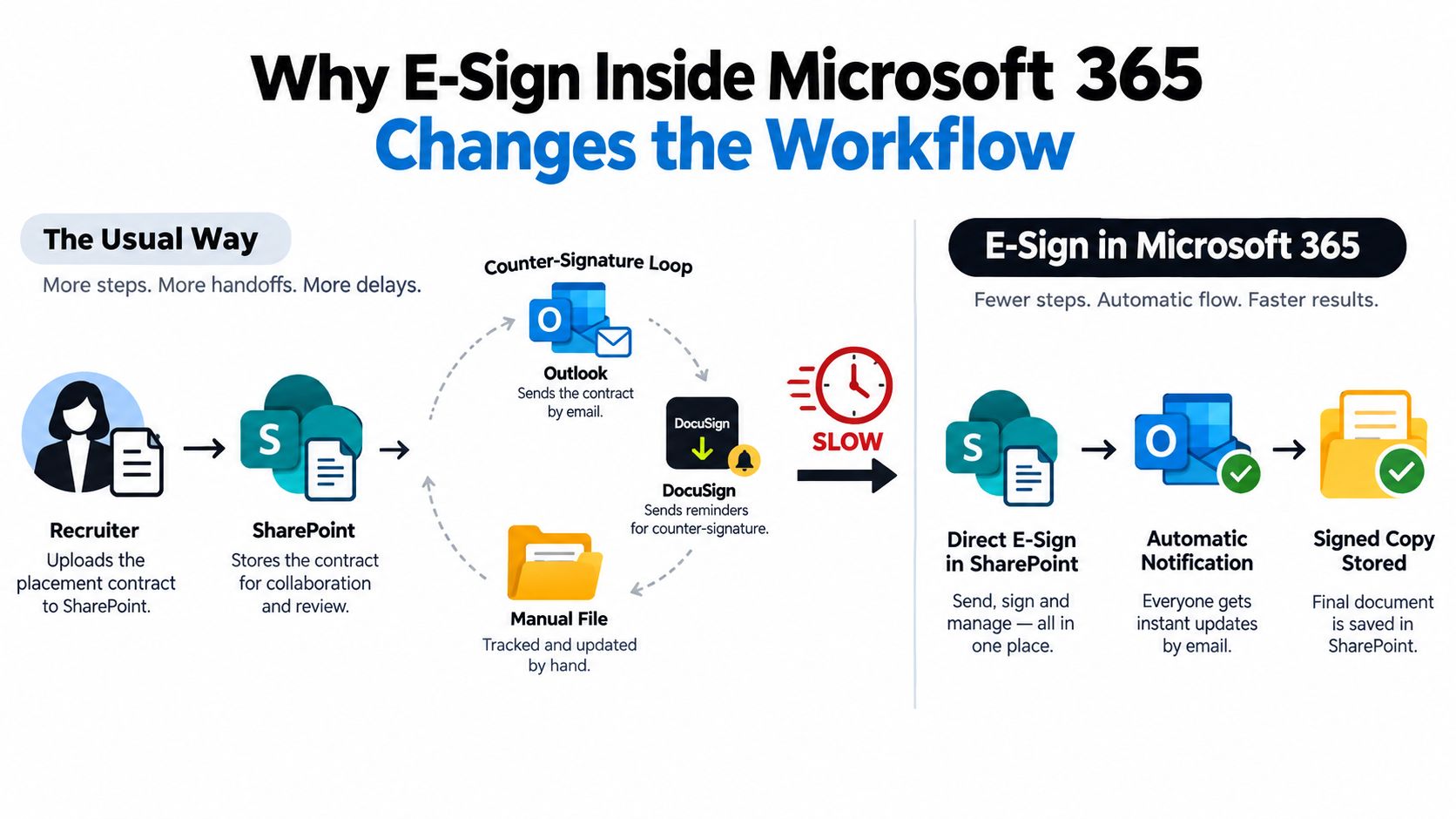
Putting e-sign inside Microsoft 365 changes that operating model. Users can send from the document system they already use, and the signed result returns to the same controlled repository instead of becoming another attachment in Outlook. Microsoft notes that eSignature for Microsoft 365 is available worldwide in public clouds for PDFs and Word documents stored in SharePoint, with completed signed PDFs saved back to the same library (Microsoft Tech Community announcement).
That sounds simple. The gain is control.
What improves in day-to-day operations
Teams spend less time on file handling and fewer requests fall outside policy.
- Records stay in one system: Signed copies return to SharePoint instead of being downloaded, renamed, and uploaded by hand.
- Users stay closer to the apps they know: Word, Outlook, SharePoint, and Teams remain the working surface for drafting, sending, and status checks.
- Permissions are easier to enforce: Access follows tenant identity and library-level controls instead of whoever has the last email attachment.
- Audit review gets cleaner: It is easier to show where the source file lived, who sent it, what came back, and where the final copy was stored.
For regulated teams, especially outside the U.S., this is usually the deciding factor. The question is not whether a vendor can place a signature box in Word. The question is whether the signing event fits your tenant's identity model, data residency requirements, retention labels, and evidentiary expectations without creating a second document trail.
Why the tenant layer changes the decision
Many buying guides stop at the add-in. That is the easy part.
The harder questions sit at the tenant layer. How does the app authenticate in Entra ID. What permissions does it request against SharePoint and mailboxes. Which domain sends notification emails, and does DMARC alignment hold when the vendor sends on your behalf. Where is the audit data stored, and can compliance staff retrieve it without opening the vendor console every time. Those details decide whether rollout stays clean after the pilot.
I have seen otherwise solid deployments stall because nobody checked these dependencies early. A legal team liked the Word integration, but security blocked production use until admin consent, signer identity options, and mailbox routing were documented. Another team had signed files returning correctly to SharePoint but failed an internal review because the notification domain and evidence trail were handled outside existing policy.
A good Microsoft 365 e-sign rollout keeps user convenience and administrative control in the same design. That is what turns "send for signature" from a handy feature into a governed business process.
Prerequisites Every Admin Needs Before Setup
Monday morning rollout. Legal wants signatures live in Word by Friday. Security wants the app review packet, mail team wants to know which domain will send signer notifications, and records management wants proof that the signed file, certificate, and event log can all be retained under policy. That is the starting point.
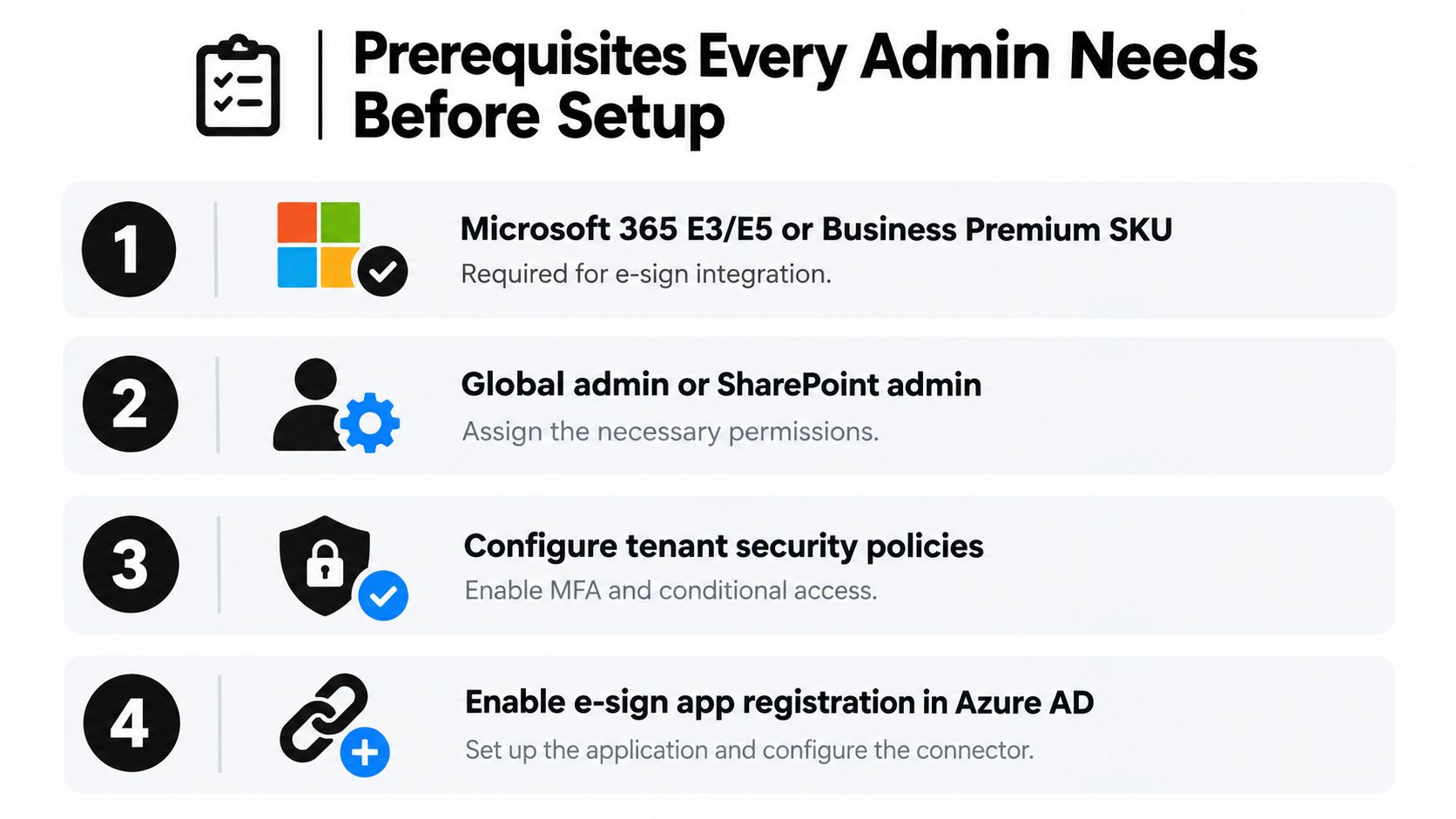
Start with licensing and scope
Define who can send, who can approve, and who only signs. That sounds basic, but it drives everything that follows, including Office app behavior, mailbox routing, retention ownership, and the e-sign vendor's pricing model.
Mixed-license tenants need extra care. A pilot group on Microsoft 365 E5 may have a cleaner experience than a wider rollout that includes frontline, shared-device, or web-only users. Check that early. Also confirm whether the e-sign platform charges by sender, envelope volume, API usage, or some combination. I have seen business teams design a high-volume approval flow in Power Automate, then discover the commercial plan priced that pattern badly.
Microsoft is also pushing eSignature into existing document workflows, not treating it as a separate edge case, which makes tenant planning more important than the add-in itself (Microsoft Adoption page).
Register the app with tenant control in mind
If the product authenticates through Entra ID, decide the app model before anyone clicks consent. Single-tenant is usually easier to govern for internal use. Multi-tenant can make sense for supplier, customer, or partner signing scenarios, but it brings a wider review surface and more questions from security.
Check three items carefully:
- Redirect URIs: Desktop Office, Office on the web, and vendor-hosted signing pages may all call back differently.
- Credential management: Secrets expire. Certificates expire. Put renewal on an owner and calendar before production.
- Consent path: User consent during first launch creates support noise. Admin consent with a documented permission review is cleaner.
Also decide whether Conditional Access, MFA requirements, or sign-in risk policies could block the sender experience. The issue often shows up only after pilot users move from a permissive test account to their real production identity.
Verify permissions, DNS, and evidence capture
Permissions should match the exact workflow, not the vendor's broadest template. File read and write access, selected SharePoint site access, and mail-sending rights may all be valid. Full mailbox or tenant-wide file access usually deserves a second look.
Mail trust is the point many Microsoft 365 guides skip. If the vendor sends notification emails on your domain, check SPF, DKIM, and DMARC alignment before testing signer delivery. If the vendor uses its own domain, decide whether that fits your external trust model and your anti-phishing policy. For regulated teams outside the U.S., this is often where legal and security push back, because a valid signature process still fails operationally if the notice email lands in quarantine or the sender identity does not match policy. Microsoft documents the dependency clearly in its DNS setup guidance, including the fact that DNS changes can take time to propagate across services (Microsoft Learn DNS guidance).
One more control gets missed in early pilots. Evidence has to survive outside the vendor UI.
Before first production use, confirm where the completed PDF lives, where the audit certificate lives, whether status events can be exported, and how those records map to Microsoft Purview retention or case review. If the answer is "someone logs into the vendor admin console and downloads it later," the setup is not ready.
Installing Add-Ins and Connectors Across Office Apps
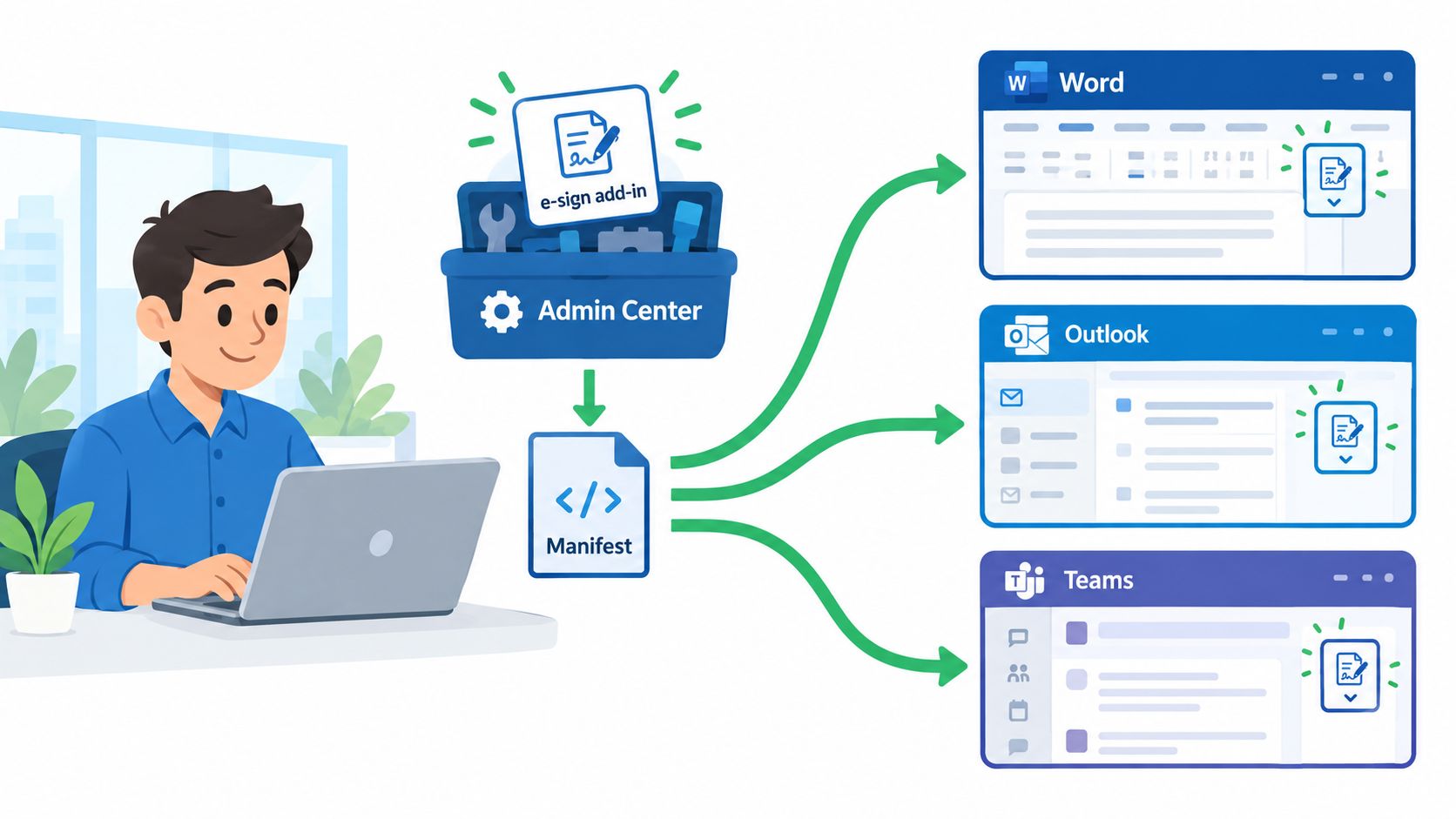
Deployment goes smoother when you treat each Microsoft 365 surface as its own operating context. Word isn't Outlook. SharePoint isn't Teams. Users notice that difference immediately, so your admin setup should too.
Word and Outlook
In Word, deploy the add-in through centralized admin controls first, not by asking individual users to sideload it. Sideloading is fine for a lab test, but it creates support confusion fast. Pinning the command into the ribbon helps because users don't hunt for it when they're ready to send a contract.
In Outlook, install the add-in for both desktop and web. The web client catches edge cases that desktop-only testing misses, especially in organizations with mixed device policies. Set a default subject pattern that makes signed copies easy to identify later in SharePoint and in mailbox search.
A simple user path matters here. If someone asks how to send a file from Word, this walkthrough on doing an e-signature on Word is the kind of reference worth keeping in your rollout documentation.
SharePoint and Teams
SharePoint is where the integration becomes operational instead of cosmetic. Attach the connector to the document library that stores contracts, consent forms, or approvals. Then define the content type for executed copies and decide which metadata should map into the signing request.
Use field mapping carefully:
- Contract type: Helps route retention and reporting later.
- Owner or department: Useful when a shared library serves multiple teams.
- Counterparty metadata: Keeps search usable after execution.
In Teams, pin the app where users already coordinate work. A legal operations team may want a dedicated channel. A sales pod may only need lightweight notifications. The point isn't to mirror every event into Teams. It's to post the ones people act on.
Verify single sign-on end to end
Don't stop after the app appears in the ribbon. Validate the full chain.
- Open a document stored in the target SharePoint library.
- Launch the signing action from Word or SharePoint.
- Confirm the user identity passes through without another confusing login prompt.
- Complete a test request and verify the final document lands in the right library with expected metadata.
Microsoft documents one concrete limitation that should be tested early: a PDF signature request must use an unencrypted PDF, and the request can include up to 10 internal or external recipients with Signature, Initials, and Date fields placed by drag-and-drop (Microsoft Learn send requests guidance).
That limit matters in education, healthcare, and real estate workflows where people often try to repurpose a single packet for too many signers.
Document Signing APIs and Embeddable Components
Native Microsoft 365 signing is good when the document already lives in SharePoint and the business process starts there. It isn't automatically the right fit for CRM-driven workflows, partner portals, or custom apps.
Sales teams usually face three choices. They can trigger signing from the document library, call a Document Signing API from Dynamics or another system, or embed a signing component in a customer-facing page so the signer never leaves the portal. The right path depends on what event starts the workflow and how much control you need around the user experience.
Which path fits which trigger
If the trigger is a document upload into a controlled SharePoint library, native signing is usually the cleanest route. That works well for HR offer letters, procurement approvals, or internal forms where Microsoft 365 already owns the record.
If the trigger is a CRM stage change, API-driven sending is better. The app can generate the request, map account or deal data into fields, store the envelope ID, and listen for a callback when the signature completes. This is often the right shape for professional services statements of work or logistics rate agreements generated from a sales or operations system.
Embeddable signing belongs in portals and product-led flows. A prospect submits a form, reviews the agreement on the same page, and signs without being pushed into another interface. That's useful when speed and continuity matter more than a strict Microsoft 365-centered user path.
| Path | Best For | Customization | Audit Depth | Setup Effort |
|---|---|---|---|---|
| API | CRM-driven sends from Dynamics or custom apps | High | Strong when callbacks, document events, and storage rules are configured well | Higher |
| Embeddable | Portals, web apps, customer self-service signing | High on UX and branding | Varies by implementation and evidence handling | Medium to higher |
| Native SharePoint Signing | Documents already controlled in Microsoft 365 | Lower | Strong inside Microsoft 365 governance boundaries | Lower |
When not to embed
Embedded signing sounds attractive because it feels fluid. It can also hide operational gaps.
Avoid it when the legal team needs a very explicit audit packet, when fallback paper signing is still common, or when identity proofing standards are stricter than the portal currently supports. In regulated sectors, convenience can't come at the cost of evidence quality.
The smoother the front end becomes, the more disciplined the back-end event handling has to be.
A practical middle ground is to use API-based orchestration with SharePoint or OneDrive as the final storage target. That gives CRM teams automation without losing document control. If you're comparing patterns, this guide to an e-signature API with embedded signing lays out the trade-offs clearly.
One option in this category is BoloSign, which supports document signing APIs and embeddable components alongside AI contract review and broader contract automation. That's useful when the same team wants signing tied to intake, redlining, approvals, and executed recordkeeping rather than treating signatures as a separate step.
Webhooks and Power Automate for End-to-End Signing
Once the signature request leaves Word or SharePoint, the value comes from what happens next. A good webhook and Power Automate design eliminates the manual “signed, now what?” step that slows almost every rollout.
Webhook setup that won't become fragile
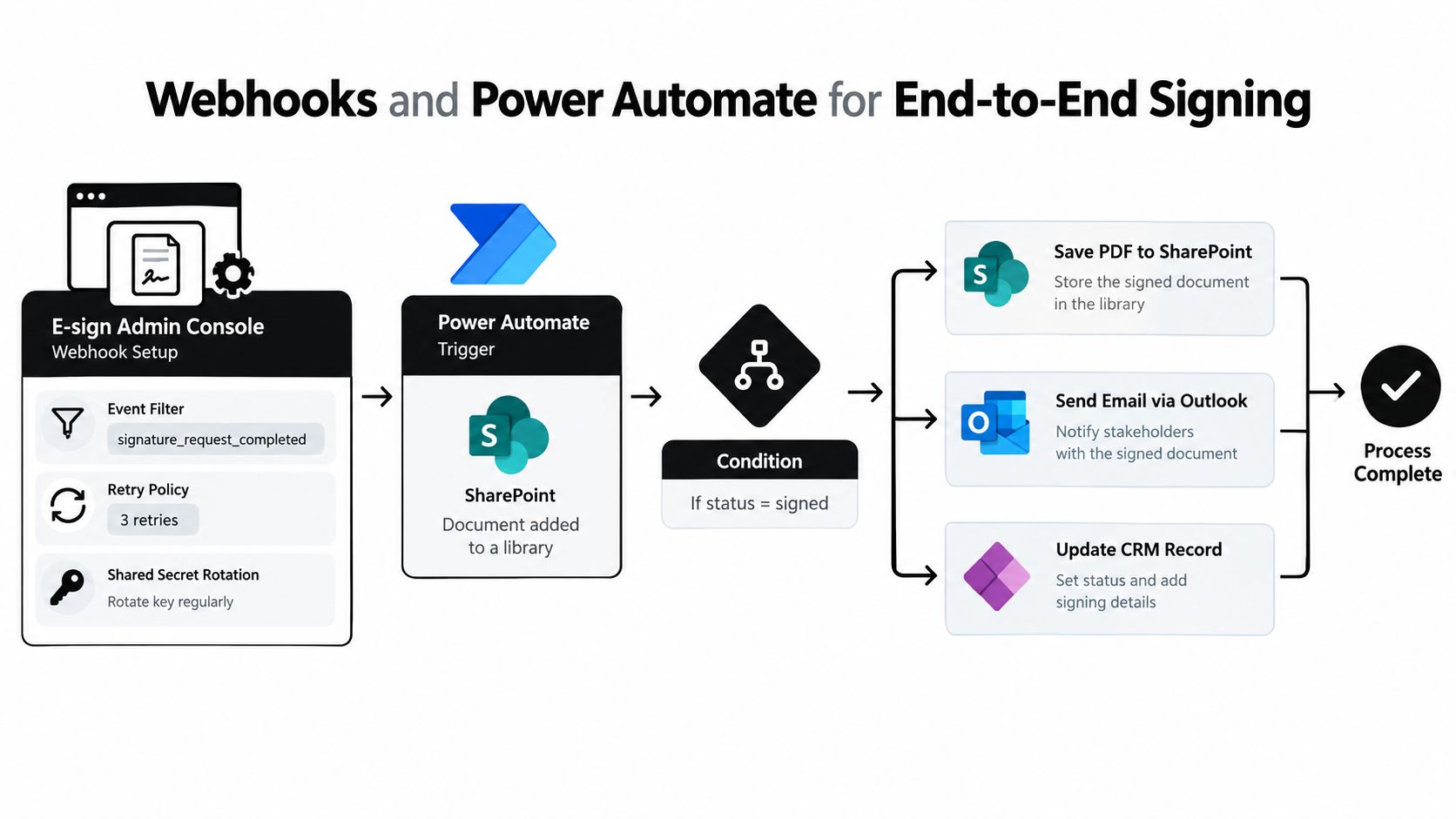
In the e-sign admin console, subscribe only to the events you use. Too many teams turn on every event, dump them into a flow, and then wonder why troubleshooting takes hours. Start with created, completed, declined, and expired states if those are the ones the business acts on.
Also define the operational basics early:
- Retry policy: Failed delivery has to retry predictably.
- Shared secret rotation: Treat webhook credentials like any other app secret.
- Regional endpoints: Keep endpoint location aligned with the tenant and the provider's available regions.
If your team wants a broader reference on process design, Bridge Global's powerful workflow automation tips are useful for shaping Power Automate logic beyond simple notifications.
A Power Automate pattern that works
A reliable pattern starts in a SharePoint document library. A metadata change, such as status moving to "Ready for Signature," triggers the flow. The flow sends the file through the e-sign connector, stores the external request ID in a column, waits for the completed callback, and then writes the executed PDF into a Records library with the right retention label.
That pattern scales because each system does one job well. SharePoint controls the document. The e-sign service handles execution. Power Automate manages the handoff and follow-up actions.
Keep the trigger narrow. Scope the flow to one site and one library before you generalize it across the tenant.
Two real workflow examples
A healthcare clinic can use this pattern for patient intake consent. Staff upload the consent packet, a flow sends it for signature, and the completion event writes the signed PDF back while also storing the consent timestamp in Dataverse. That gives operations a usable record without asking front-desk staff to re-enter signature status by hand. For teams handling PHI, this is also where compliance settings such as HIPAA controls and access scoping need to stay aligned with the workflow.
A real estate agency can use the same sequence for purchase agreements. When all parties sign, the webhook updates the deal stage, stores the executed agreement in the transaction library, and alerts the agent in Teams or Outlook. The key isn't the notification itself. It's that the signed record and the pipeline status move together.
BoloSign fits well in this kind of setup when teams need to create, send, and sign PDFs, templates, and forms instantly, then extend the same flow into contract automation and AI contract review instead of stopping at signature capture.
Security and Compliance Settings That Actually Hold Up
A vendor's security page doesn't make your Microsoft 365 signing workflow audit-ready. Your tenant configuration does. That's the difference many teams only discover during legal review, an internal audit, or a regulated customer questionnaire.
What Microsoft 365 can log and prove
Microsoft expanded eSignature for Microsoft 365 to worldwide availability on September 23, 2025, and the service lets users request signatures on PDFs and Word documents stored in SharePoint across Microsoft 365 public clouds. Microsoft also says eSignature actions are logged in Purview Audit, including request created, sent, canceled, declined, expired, completed, document viewed, document signed, signed link sent, and signed document downloaded, which makes the workflow auditable at enterprise scale (Microsoft Learn eSignature overview).
That event list is the baseline. It tells you what happened. It doesn't automatically prove your tenant retained the evidence properly, restricted access correctly, or enforced the right identity controls around the workflow.
The controls auditors actually ask about
Conditional Access comes first. Require MFA for admins and for the users who can configure the signing integration. If your policy model supports device compliance checks for privileged actions, use them. A compromised admin session is a much bigger risk than a single signer delay.
Then check the evidence chain:
- Audit retention: Make sure the relevant events remain available for the period your policy or regulator expects.
- Log forwarding: If your security team uses a SIEM, export the relevant audit data there as part of normal monitoring.
- Validation records: Keep screenshots, configuration notes, test results, and approval records for the rollout itself.
Regulated and international use cases
The compliance story gets more nuanced. Microsoft documentation says the service supports simple electronic signatures under eIDAS, logs activity in Purview Audit, and integrates with Adobe Acrobat Sign and DocuSign. But independent guidance tied to Microsoft 365 compliance workflows makes the point: legal defensibility depends on tenant configuration, identity controls, retention, audit logging, and validation documentation, not the subscription alone. In more regulated scenarios, teams may also need Power Automate and archived certificates to satisfy audit expectations (Microsoft compliance workflow guidance).
That matters outside the U.S. especially. A team in the UAE, Canada, Australia, or the EU might have a globally available feature but still need different residency, retention, privacy, or approval controls to make it acceptable internally. Global rollout and compliance readiness are related, but they aren't the same problem.
For organizations comparing platforms, this is also where standards such as ESIGN, eIDAS, GDPR, and HIPAA move from marketing labels to implementation details. A useful reference point is this discussion of GDPR and SOC 2 considerations for global e-sign rollouts, because it keeps the focus on operational controls instead of badge collecting.
Common Pitfalls and Best Practices for Adoption
Most failed rollouts are predictable. The app gets deployed, but admin consent is incomplete. SharePoint permissions let users read a contract but block the automated process that needs to save the executed PDF. Someone pilots the workflow with one license type, then broad rollout hits a different group whose Office experience doesn't support the same path.
The most common fix is boring and effective. Standardize deployment tenant-wide, then test with real user profiles from each department before anyone announces the launch. Per-user workarounds create a support burden that spreads fast.
What to tighten before broad rollout
- Pilot one business unit first: Staffing, healthcare intake, or vendor onboarding each expose different issues.
- Document write-back libraries: Users need to know where the final signed copy lives and who can edit it.
- Set naming conventions: Executed files and envelope IDs should be easy to match for retention and search.
- Review webhook failures regularly: Quiet delivery errors can break downstream automation without obvious user complaints.
A lot of adoption work is training, not technology. Show hiring managers the one-click path from Outlook and SharePoint. Show clinic staff how to send consent forms without downloading PDFs first. Show a real estate coordinator where to verify status in the library instead of checking multiple inboxes.
If users need a long explanation every time they send a document, the workflow isn't ready for scale.
The stronger long-term habit is quarterly review. Recheck retention tags, app permissions, signer notifications, and any changes in Teams, Outlook, or SharePoint behavior after tenant updates. That's how you keep compliance drift from becoming an incident.
If you want a signing stack that fits into these Microsoft 365 workflows without turning every send into a usage-meter discussion, BoloSign is built for teams that need to create, send, and sign PDFs, templates, and forms instantly, then extend that into AI-powered contract automation and compliance. Its fixed-price model includes unlimited documents, templates, and team members, making it up to 90% more affordable than DocuSign or PandaDoc, and you can start with a 7-day free trial to see how it works in your own tenant and approval flows.

Paresh Deshmukh
Co-Founder, BoloForms
24 Sep, 2026
Take a Look at Our Featured Articles
These articles will guide you on how to simplify office work, boost your efficiency, and concentrate on expanding your business.