
How Redlining a Document in Word Can Streamline Your Workflow
Master redlining a document in word with Track Changes, practical tips, and best practices to speed up contract reviews.

Tired of nonsense pricing of DocuSign?
Start taking digital signatures with BoloSign and save money.
Redlining a document in Word is the classic way teams mark up edits. It’s the digital version of taking a red pen to a paper contract, using the "Track Changes" feature to show every insertion, deletion, and comment right on the page. This makes collaboration and negotiation totally transparent, but it's just the first step in a modern contract workflow.
What Redlining Means for Your Business Negotiations

Let's be clear: redlining is much more than a technical trick. It’s the backbone of modern business negotiations. It creates a transparent, historical record of every single change, comment, and suggestion made to a document—an essential audit trail for everything from high-stakes legal agreements to simple project proposals.
Imagine a real estate agency in the UAE finalizing a purchase agreement. The buyer’s agent might redline a clause to adjust the closing date, while the seller’s agent drops in a comment asking for clarification on an included appliance. Every change is clearly attributed, which eliminates confusion before it starts. This level of clarity is vital for organizations creating, sending, and signing PDFs and forms instantly.
Why Redlining Is a Non-Negotiable Skill
In today's fast-moving business world, clarity is everything. A staffing agency in Canada, for example, has to nail down the specifics of non-compete clauses in its employment contracts. Redlining lets their legal team propose changes, HR review them, and the candidate see exactly what was adjusted before providing an eSignature.
This simple process has a huge impact on business outcomes by:
- Mitigating Risk: You get a clear record of who changed what and when.
- Ensuring Clarity: All modifications are visible, preventing costly misunderstandings.
- Maintaining an Audit Trail: It provides a defensible history of the entire negotiation.
The reality is, a staggering 91% of contract negotiators still lean on Microsoft Word's Track Changes for redlining. This heavy reliance often creates version control chaos and security risks, stretching deal cycles by 20-30% as teams wrestle with confusing email chains and messy documents.
Word's "Track Changes" has become the default standard, replacing the old-school red pens of the past. But just knowing the basics isn't enough. To truly optimize your workflow, you have to understand its strengths and, more importantly, its limitations. If you're looking to level up, it's worth exploring a deeper dive into how to redline a contract effectively.
Using Track Changes for Clear and Effective Edits
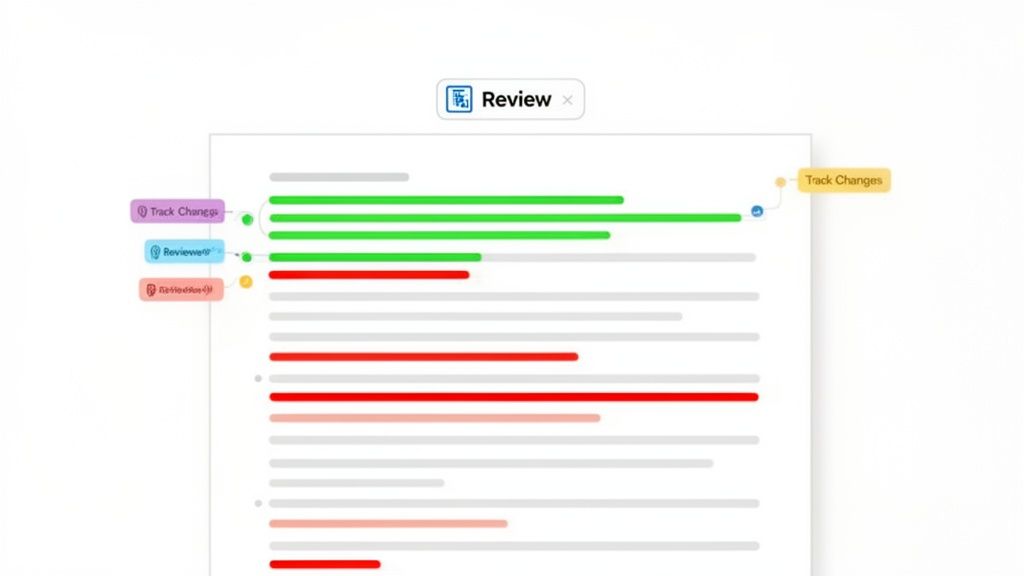
To kick off the redlining process in Word, your first stop is the Review tab. This is where you'll find the master switch for all collaborative edits: the Track Changes button.
Just click it. Once you do, Word’s redlining engine comes to life, making sure every single change—from a deleted comma to a rewritten paragraph—is recorded for everyone to see.
With Track Changes active, Word starts using a simple visual language. New text you add gets underlined, and anything you remove gets a strikthrough. It’s this clear, at-a-glance feedback that makes redlining so effective.
Mastering Your Review Display
The real power of redlining comes from controlling how you see the edits. Back in the Review tab, you’ll find a dropdown menu, which usually defaults to "Simple Markup." Getting familiar with this menu is crucial, especially when you’re navigating a document with edits from multiple people.
You have four main options to cycle through:
- Simple Markup: This gives you a clean view of the document with a subtle red line in the margin to show you where a change has been made. It’s great for getting a sense of the final text without all the visual clutter.
- All Markup: This is the classic redline view. It shows every insertion, deletion, and comment directly in the text. Perfect for a detailed, line-by-line review.
- No Markup: This shows you what the document would look like if you accepted every single proposed change. It’s a handy way to preview the "finished" version.
- Original: This takes you back in time, showing you the document as it was before anyone started tracking changes.
Knowing which view to use and when is a skill. It’s no surprise that after a new Word version rollout in 2023, queries on Track Changes shot up by 40%. Microsoft even had to confirm that the traditional strikethrough for deletions was here to stay, which makes sense—a reported 91% of negotiators prefer seeing edits right in the text for maximum clarity.
Choosing the Right Redline View in Word
Navigating the different markup displays can feel a bit confusing at first, but each one serves a distinct purpose in the review cycle. This table breaks down which view is best for what task, helping you work more efficiently.
| Display Option | What It Shows | Best Used For |
|---|---|---|
| Simple Markup | A clean final-draft view with red lines in the margin indicating changes. | Reading the document for flow without the distraction of strikethroughs and underlines. |
| All Markup | Every insertion, deletion, comment, and formatting change is visible inline. | Detailed, line-by-line review where you need to see exactly what was altered and by whom. |
| No Markup | A preview of the document as if all tracked changes have been accepted. | Proofreading the final version and checking for readability before accepting changes. |
| Original | The document as it existed before Track Changes was enabled. | Comparing the current version against the very first draft to understand the scope of edits. |
Ultimately, toggling between "All Markup" for detailed review and "No Markup" for a final read-through will cover most of your needs.
Customizing Your View for Multi-Party Edits
Things can get chaotic fast when you have multiple stakeholders weighing in on a complex contract. A simple but incredibly useful trick is to make sure each reviewer has a unique color assigned to their edits. This makes it instantly obvious who suggested what.
If you’re dealing with several versions of a document and losing track, it’s also worth exploring various Word document comparison methods to spot differences quickly without having to rely solely on Track Changes.
While Word's Track Changes is the industry standard for manual redlining, it’s just one piece of the puzzle. For a complete solution that includes AI contract review, secure signing, and seamless contract automation, you need a dedicated platform like BoloSign. This lets organizations create, send, and sign PDFs, templates, and forms instantly and securely.
Fine-Tuning the Details: Managing Comments and Reviewing Edits
Redlining is a conversation, and the best conversations are clear and focused. This is where comments come in. Instead of cluttering the main text with questions or alternative ideas, use comments to add context right where it’s needed.
Think of it this way: a healthcare provider in the US needs to clarify a specific HIPAA compliance clause, or a professional services firm in Australia wants to propose a different scope of work in a client agreement. Comments are perfect for this.
To add one, just highlight the text you want to discuss, head to the Review tab, and click New Comment. A small balloon pops up in the margin for your notes, keeping the document clean while tying your feedback directly to the right spot.
Navigating and Finalizing Your Changes
Once all the proposed edits and comments are in, it's time to review everything. Your command center for this is the Changes section, also found under the Review tab.
Here, you can systematically move through every single change using the Next and Previous buttons. This simple step-by-step process ensures you don’t accidentally skip over a critical edit.
For each suggested change, you have two clear choices:
- Accept: If the edit works, clicking this makes it a permanent part of the document.
- Reject: If it doesn’t, this discards the suggestion and keeps the original text.
Here’s a pro tip we’ve learned from handling countless contracts: Treat different edits differently. It’s smart to accept minor formatting tweaks or obvious typos in bulk. Just use the dropdown under the 'Accept' button and select 'Accept All Changes Shown'. But when it comes to substantive changes—the legal or commercial terms—give each one your full attention.
This methodical approach is your best defense against accidental approvals and ensures every important change gets the scrutiny it deserves. While this level of control is vital for getting the agreement right, it's really just the beginning of the workflow.
Once your document is finalized, platforms offering digital signing solutions can take over, moving your perfectly redlined agreement into the execution phase securely and seamlessly.
Handling Multiple Versions and Finalizing Your Document
Juggling different document versions is a classic negotiation headache. We've all been there: a collaborator sends back a file but forgot to turn on Track Changes. Now what? Instead of manually hunting for every single edit, you can lean on Word’s powerful Compare feature.
You'll find it under the Review tab. This tool is a real lifesaver—it lets you select an original document and a revised one, then generates a brand-new file showing every difference as a clean redline. It saves you from the chaos of version control gone wrong.
Similarly, the Combine feature is incredibly useful when you're getting feedback from multiple reviewers at once. It merges all the edits from several documents into a single master file, so you can review every suggestion in one organized place.
Creating the Final Execution Copy
After all the back-and-forth is done, the final and most critical step is preparing a clean "execution copy." This is the version that gets signed. Before sending it out, you must accept all the agreed-upon changes and turn off Track Changes.
This simple flowchart shows the core decisions you’ll make for each suggested edit.
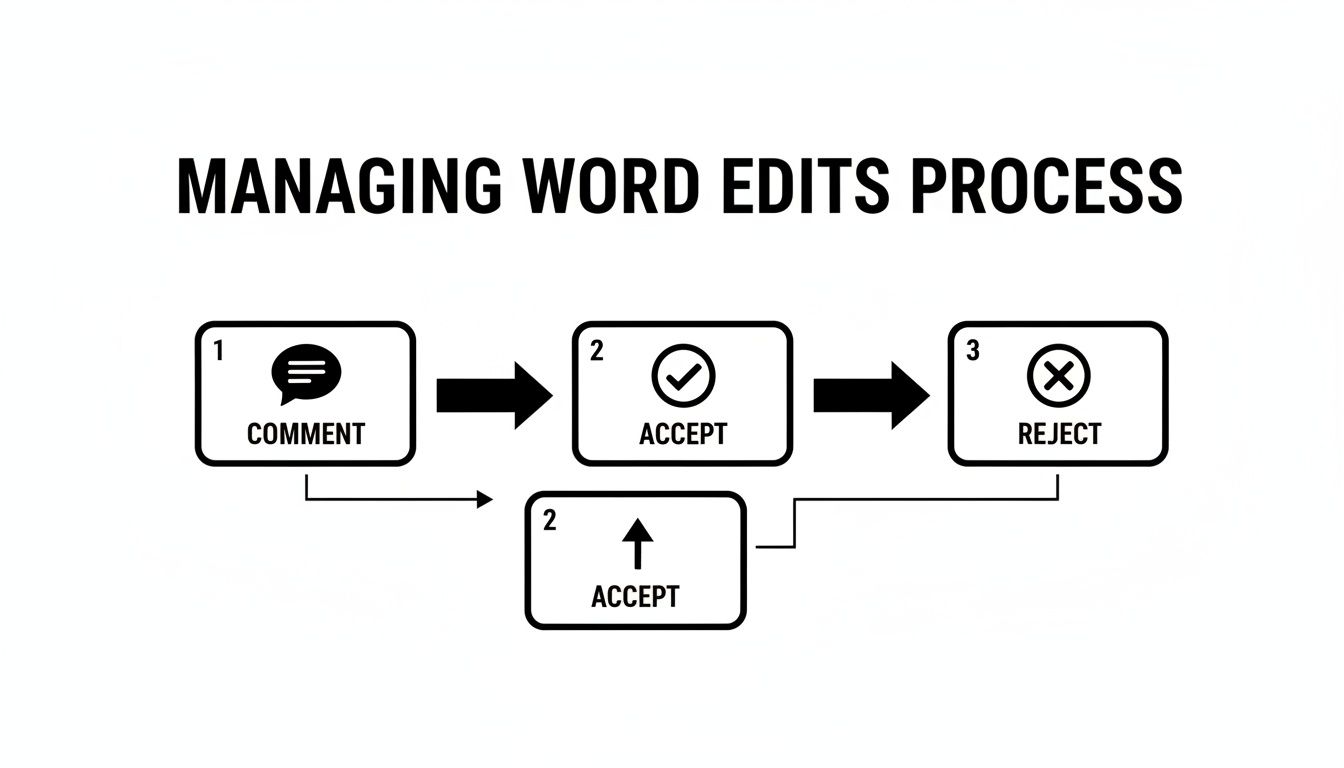
You’re either adding a comment for context, accepting the change, or rejecting it. It's a straightforward loop until the document is finalized.
Warning: Never skip this final step. Sending a document with tracked changes still active is a huge security risk. You’re not just sending the final text; you’re also sending the entire negotiation history, including sensitive deleted clauses and internal comments you never intended for the other party to see.
Properly managing versions is a fundamental part of the contract lifecycle. To effectively manage your documents from draft to final version, many teams rely on the best document management software solutions that integrate these workflows.
Moving Beyond Manual Redlining with AI Contract Automation
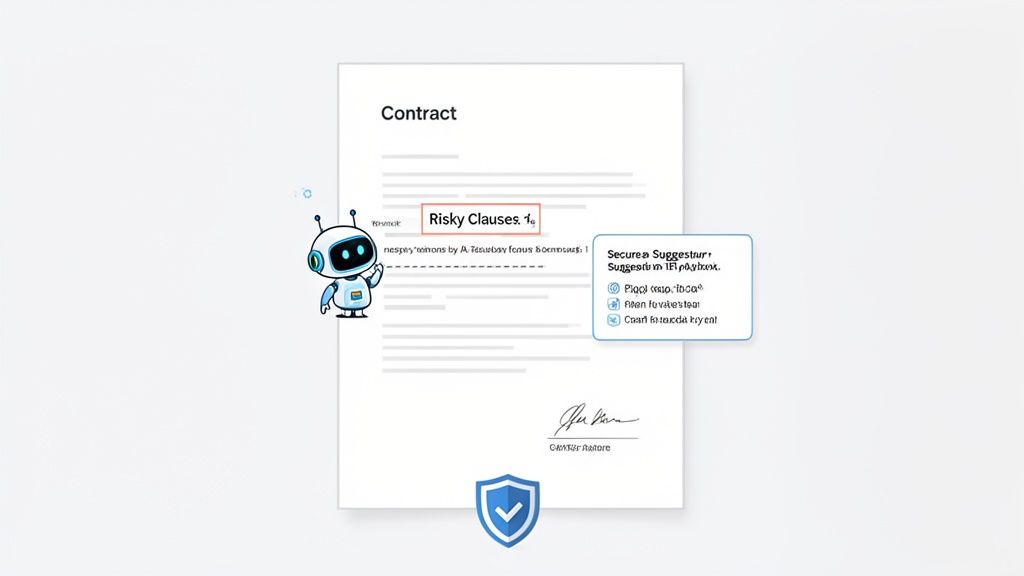
While Word’s Track Changes is a workhorse, relying on it alone often leads to bottlenecks and unnecessary risk, especially when you’re trying to move fast. We've all been there, staring at a folder full of files like Contract_v5_Final_FINAL_use_this_one.docx, praying we have the right one. Each new version is another chance for human error or a security slip-up from hidden metadata.
This is where you graduate from just redlining a document to building a smarter workflow. The next logical step is to layer AI-powered intelligence on top of the tools you already use every day. Think of it as a system working alongside Word to handle the entire contract process, not just the edits.
Supercharge Your Contract Workflow
Instead of just tracking changes, a platform like BoloSign elevates the entire contract lifecycle. For a logistics company in New Zealand, that could mean instantly flagging non-standard clauses in a shipping agreement before it ever goes out. For a healthcare provider in the US, it’s about automatically checking that every contract stays HIPAA compliant without a painstaking manual review.
This AI-powered approach brings serious advantages:
- Automated Risk Flagging: The AI spots risky or ambiguous language that tired human eyes might easily miss.
- Playbook Suggestions: Get instant, pre-approved suggestions for alternate clauses right from your company’s legal playbook.
- Unified Lifecycle Management: Handle everything—from the first draft to the final, secure eSignature—all in one place.
Research confirms what many of us feel: over 91% of professionals still default to Word for redlining, but new AI integrations can cut review time by 50%. By 2026, Gartner predicts 70% of firms will adopt a hybrid model, combining Word with a Contract Lifecycle Management (CLM) platform. This shift is expected to slash manual redlining from 91% down to 50%.
This isn't about ditching Word; it's about making it smarter. With BoloSign, you can instantly create, send, and sign unlimited documents, PDFs, and templates with unlimited team members. This intelligent contract automation helps teams in real estate, professional services, and education close deals faster while staying compliant with global standards like ESIGN, eIDAS, and GDPR.
By connecting Word to a dedicated platform, you kill the version control headaches and add a layer of security that standalone documents just can’t provide. If you want to see how this works in the real world, check out our guide on AI contract review software. The best part? This advanced capability comes at a single fixed price, making it up to 90% more affordable than alternatives like DocuSign or PandaDoc.
Common Questions About Redlining in Word
Even with a good handle on redlining, a few questions always seem to pop up, especially when you're on a tight deadline. Let's walk through some of the most common ones.
A frequent point of confusion is figuring out who made a specific change. It's actually quite simple. Just hover your mouse over any redlined text, and a small pop-up box will appear showing the reviewer's name, the date and time of the edit, and what they did (like "Inserted" or "Deleted").
Troubleshooting Common Issues
So, what happens if the Track Changes button is greyed out and you can't click it? This is a classic sign that the document is protected. Head over to the Review tab and look for the Restrict Editing option. If it's active, you'll need to click "Stop Protection." You might need a password to unlock the file and get back to editing.
Another critical question is how to safely scrub all the markup before you send a final document to be signed online. This is a step you can't afford to get wrong.
The only truly safe way to finalize a document is to go to the Review tab, click the small dropdown arrow under "Accept," and choose "Accept All Changes and Stop Tracking." This action permanently burns all the approved edits into the document and strips out the entire history of changes and comments from the file's metadata.
Just switching your view to "No Markup" is a common but dangerous mistake. That only hides the redlines, leaving sensitive negotiation data attached to the file where it can be easily recovered.
For organizations that need a fully secure and compliant workflow from the first draft to the final signature, the best approach is to integrate your process with a platform that offers both AI contract review and a secure eSignature solution. This completely removes the risk of accidentally sending a document full of hidden redlines, ensuring every signed agreement is clean, final, and professional.
Ready to move past manual Word redlining and adopt a smarter, faster, and more secure contract workflow? BoloSign combines AI-powered automation with unlimited documents, templates, and eSignatures at a single fixed price, making it up to 90% more affordable than other solutions. Start your 7-day free trial today and experience firsthand how simple contract management can be.

Paresh Deshmukh
Co-Founder, BoloForms
7 Feb, 2026
Take a Look at Our Featured Articles
These articles will guide you on how to simplify office work, boost your efficiency, and concentrate on expanding your business.