

Master Guide: How to Do an E-Signature on Word for Quick Signing
Discover how to do an e signature on word quickly with built-in tools, steps, and tips to sign documents without leaving Word.


Tired of nonsense pricing of DocuSign?
Start taking digital signatures with BoloSign and save money.
Still stuck in the print-sign-scan loop? There’s a much better way. You can add an electronic signature directly inside Microsoft Word using a few different methods, ranging from a simple image of your signature to a secure, legally-binding add-in like BoloSign.
The Best Ways to Add a Signature in Word
The right option really depends on what you need it for. A quick internal approval doesn't require the same level of security as a formal client contract, and choosing the right method is key for both speed and compliance. We’ll walk through the pros and cons of each approach to help you move from clunky paperwork to a smooth digital workflow.
This isn't just a small trend; it's a massive global shift. The eSignature market is expected to hit USD 238.42 billion by 2034, with North America alone making up 46% of that. This explosive growth shows why getting e-signatures right inside Word is becoming a must-have for businesses that want to operate efficiently and stay compliant.
Choosing Your E-Signature Method
Deciding which way to go can feel tricky. This simple decision tree will help you figure out the best path based on what you’re trying to accomplish with your document.
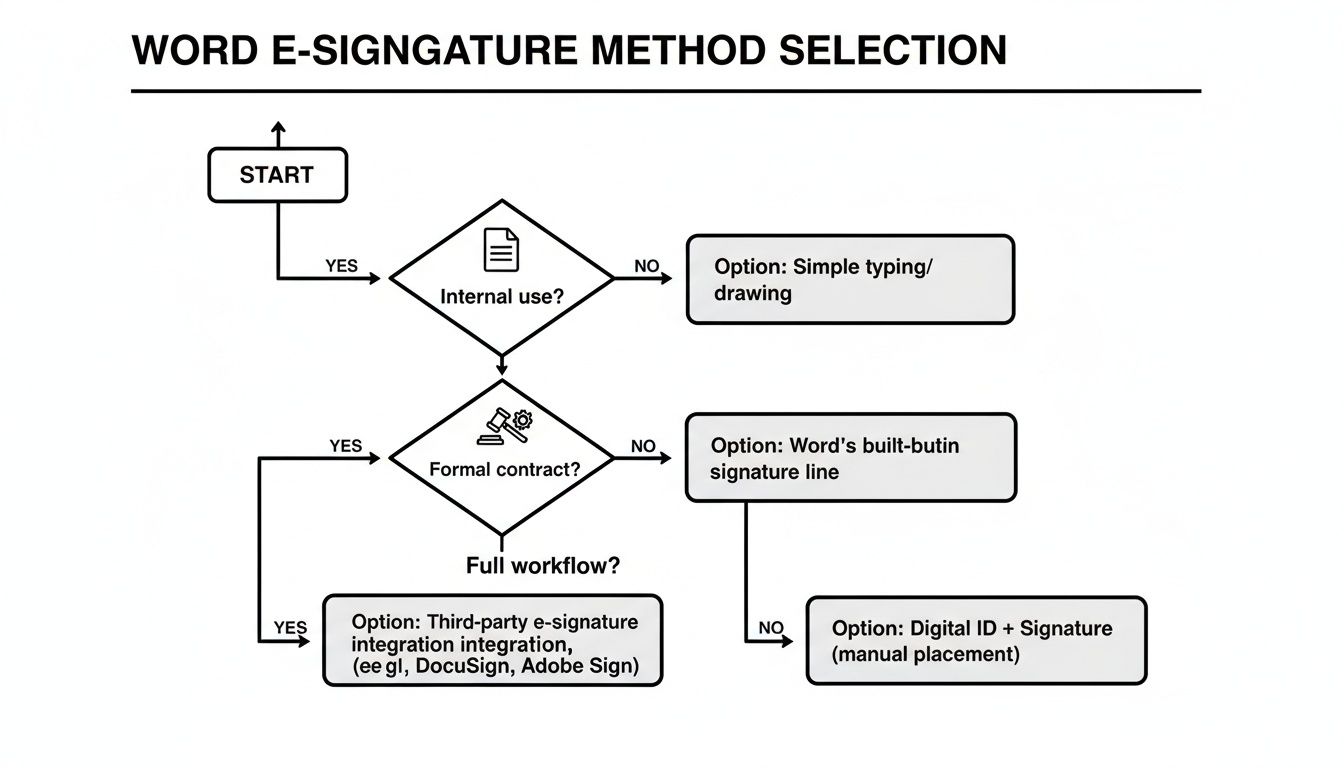
As you can see, pasting a simple image works just fine for informal, internal tasks. But when it comes to formal contracts or complex approval chains, you need a more robust and secure solution.
For instance, a real estate agent can use an integrated add-in to get contracts signed in minutes, not days. A staffing agency could send out offer letters and onboarding forms directly from Word, tracking their status in real time. We'll show you how integrated tools like BoloSign not only simplify the signing process but can also automate your entire contract workflow without breaking the bank.
Methods for E-Signing in Word At a Glance
To make it even clearer, here’s a quick breakdown of the four main ways to e-sign in Word.
| Method | Best For | Security Level | Ease of Use |
|---|---|---|---|
| Pasting an Image | Quick internal approvals, informal documents | Low | Very Easy |
| Drawing/Inking | Signing on touch devices, personal use | Low | Easy |
| Word's Digital Signature | Internal corporate use, verifying document integrity | Medium | Moderate |
| Integrated Add-ins | Legally binding contracts, external agreements, audit trails | High | Easy |
This table shows the trade-offs at a glance. While Word’s built-in features offer some convenience, they can’t match the security and legal standing of a dedicated e-signature platform.
Understanding these differences is crucial, and our guide on how to electronically sign documents goes deeper into the legal details. Ultimately, a platform built from the ground up for secure, compliant, and scalable e-signing will always deliver more value than Word’s basic features alone.
Using Image and Draw Tools for Quick Signatures
Sometimes, you just need to get a signature on an internal document fast. Think expense reports, quick approvals, or draft reviews. For these informal scenarios where a full audit trail isn't the priority, Microsoft Word's built-in tools are a surprisingly simple and effective starting point.
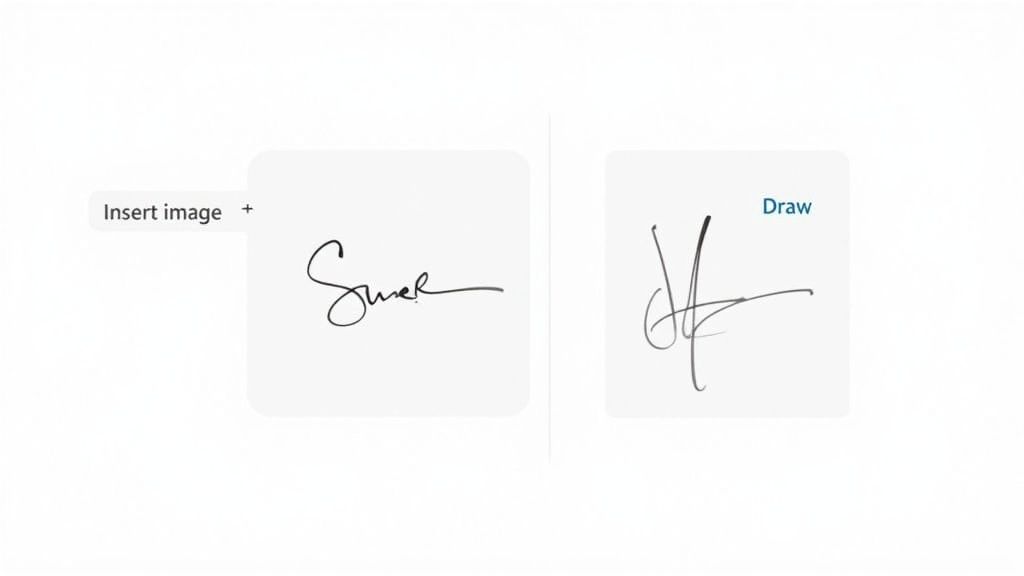
You can skip the extra software and add a visual signature in two ways. The most common is to just insert a picture of your handwritten signature. Another great option, especially if you're on a tablet, is to sign directly on the document using the Draw feature.
Adding a Signature Image
This is the classic method, and it works great. First, sign your name on a clean, blank piece of paper. Then, just scan it or snap a clear photo with your phone and save the image file to your computer.
Once you've got your image ready, open your Word document and click your cursor right where the signature needs to go.
- Head over to the Insert tab on the ribbon at the top.
- Click Pictures and choose This Device.
- Find your saved signature image and pop it in.
After the image appears, it might not be perfectly placed. Just right-click on it, go to Wrap Text, and select In Front of Text. This lets you drag and drop it exactly where it needs to be, resize it, and make it look just right.
This screenshot shows exactly where to find the picture insertion tool in Word's "Insert" menu.
This visual guide makes it easy to locate the exact feature needed to add your signature image to the document.
Using the Draw Feature on Touch Devices
If you're working on a device with a touchscreen—like a Surface Pro, an iPad, or a 2-in-1 laptop—you can sign directly on the document. It feels much more natural and is incredibly fast.
Just switch to the Draw tab, pick a pen tool you like, and write your signature in the designated spot. It’s that easy.
While convenience is a huge driver for e-signature adoption (with 44% of business owners citing it as a key reason), it’s crucial to match the method to the need. Image and draw signatures are perfect for those quick, internal approvals, reflecting the broader trend where 70% of e-signatures now happen on mobile devices. You can dive deeper into the data on the adoption of electronic vs paper signatures.
But here’s the important part: for legally binding contracts or high-stakes agreements, these simple visual methods just don't cut it. They lack the security, authentication, and audit trails required for true legal enforceability. For that, you'll need a more robust solution.
Creating a Secure Digital Signature in Word
When you need to move past a simple visual signature and guarantee a document's authenticity, Word’s built-in Digital Signature feature is the right tool for the job. This isn't just about pasting an image of your signature. Instead, this method uses cryptography to create a secure, tamper-evident seal on your document.
Think of it as the digital equivalent of a notary's stamp. It's the gold standard for high-stakes documents like legal contracts, official financial reports, and internal compliance forms where integrity is absolutely non-negotiable.
Once a document is digitally signed, it's effectively locked. Any attempt to edit the file after the fact will immediately invalidate the signature, giving everyone a clear red flag that tampering has occurred.
This process provides a much higher level of assurance and is essential for situations where you need to comply with regulations like the ESIGN Act in the U.S. or eIDAS in the EU.
How Digital Signatures Work
To get started, you first need what’s called a digital ID (also known as a digital certificate). You can't just create one yourself; you have to get it from a certified third-party provider known as a Certificate Authority (CA). This digital ID is unique to you and serves as your verifiable online identity. For companies managing this at scale, secure digital signatures often become part of a larger strategy involving comprehensive Office 365 solutions for business.
With your digital ID ready, you can add a formal Signature Line to your Word document. It’s pretty straightforward:
- Head over to the Insert tab in the ribbon.
- Find the Text group and click on Signature Line.
- A setup box will pop up where you can fill in the signer's details.
When your recipient opens the document and clicks this signature line, Word will prompt them to sign using their own digital certificate. This action cryptographically binds their verified identity to the document, creating that secure seal.
This method is incredibly valuable for professional services firms, like accounting or legal practices, that issue certified reports. The digital signature confirms the document is authentic and hasn't been altered since it was signed, protecting both the firm and its clients.
While powerful, managing individual digital certificates can get clunky, especially in a large organization where many people need to sign documents. Each person has to obtain and maintain their own certificate, which adds a layer of complexity to your workflow. This is where dedicated e-signature platforms really start to shine by simplifying the entire process from start to finish.
Using a Word Add-In for a Complete Signing Workflow
Let's be honest, Word’s built-in signature features are fine for simple, one-off approvals. But when you need a truly complete, legally-binding signing process, they just don't cut it. For businesses, the real power comes from a dedicated add-in that turns Word from a basic text editor into a full-fledged contract automation hub. This is about moving beyond just adding a picture of a signature to truly managing the entire document lifecycle.
With an integrated solution like BoloSign, you can create, send, and sign PDFs online without ever leaving your Word interface. Forget the clumsy process of downloading, emailing, and manually tracking documents. Instead, you can prep a contract, designate signature fields, send it to multiple signers in a specific order, and get real-time updates on its status.
The Power of an Integrated Platform
Using a Word add-in directly tackles the core limitations of the native features by giving you a robust, compliant, and efficient workflow. This is absolutely critical in regulated industries where security and auditability are non-negotiable.
Here’s what a dedicated add-in brings to the table:
- Legally Binding Signatures: Signatures are fully compliant with global regulations like ESIGN, eIDAS, HIPAA, and GDPR.
- Comprehensive Audit Trails: Every single action—from the moment a document is viewed to when it's signed—is time-stamped and logged. This creates a tamper-proof record you can rely on as legal evidence.
- AI-Powered Automation: Tools like BoloSign bring AI right into your workflow with contract intelligence, helping you review clauses and manage risk without switching apps.
- Seamless Template Management: Save your most-used documents as templates to instantly generate new agreements. This is a massive time-saver for HR teams sending offer letters or real estate agencies preparing leases.
This integrated approach is also the answer to major security concerns. While 17% of potential users cite security as a barrier, the market is decisively shifting towards software solutions, which now make up 46% of the e-signature market’s components. This move is driven by the need for compliance in sectors like healthcare and logistics, which aligns with the fact that 95% of businesses are planning to adopt these tools. Discover more insights about e-signature market trends on ElectroIQ.
A Smarter and More Affordable Choice
Perhaps the biggest advantage is affordability. Many well-known platforms like DocuSign or PandaDoc charge per user or even per document, which can get incredibly expensive as your business grows. BoloSign flips that model on its head by offering unlimited documents, templates, and team members for one predictable, fixed price. For many teams, this makes it up to 90% more affordable.
This simple, scalable cost structure is a game-changer for any organization, from professional services firms to educational institutions. When you're weighing your options, our guide on the best electronic signature software offers a detailed comparison to help you choose.
By integrating a powerful digital signing solution directly into Word, you create a seamless and secure environment to manage all your agreements from start to finish.
Best Practices for Secure and Compliant E-Signing
Just knowing how to pop an e-signature into a Word doc is the easy part. The real challenge is making sure every signature you collect is secure, compliant, and actually holds up legally. This is where moving beyond simple image inserts to adopting best practices becomes non-negotiable for any serious business.
First things first: signer identity verification. Before anyone signs, you need a reliable way to prove they are who they claim to be. This could be as simple as sending a one-time code to their phone (multi-factor authentication), a standard feature in dedicated platforms like BoloSign. Without it, you’re just trusting an email address.
Next up is the audit trail. For compliance, this isn't a "nice-to-have"—it's a must.
A rock-solid audit trail captures every single interaction with the document. Think of it as a digital footprint: who opened it, when they viewed it, their IP address, and the exact moment they signed. This creates a tamper-proof log that becomes your best evidence if a signature's validity is ever questioned.
This isn't just about general best practices; it's about meeting specific industry rules. For instance, a healthcare provider has to ensure its signing process is fully HIPAA-compliant to protect sensitive patient data. Our guide on HIPAA-compliant electronic signatures breaks down exactly what that entails. Likewise, a company doing business in Europe must follow regulations like eIDAS.
Getting a handle on the different compliance frameworks is crucial. For a deeper dive into what auditors and partners look for, it’s worth understanding SOC compliance and other key standards.
Ultimately, using a purpose-built platform automates these security layers. Instead of manually checking boxes, tools like BoloSign handle the verification, audit trails, and compliance workflows for you, letting you get signatures with confidence.
Common Questions About E-Signatures in Word
As you start using e-signatures in Word, a few questions always pop up. Getting these answers straight helps you pick the right method for the job and shows why a dedicated platform is almost always the smarter, safer choice for real business.
Is a Signature I Draw in Microsoft Word Legally Binding?
This is the big one. A signature you draw in Word can be legally binding, but there's a huge catch. Laws like the ESIGN Act focus on the signer's intent, and a drawn signature can show that.
The real problem is proof. That simple image of your signature has no built-in, verifiable audit trail. How do you prove who signed it, when they signed it, and that the document wasn't sneakily altered afterward? For any important contract, that's a risk you just don't want to take.
A dedicated digital signing solution like BoloSign solves this completely. It automatically creates a detailed, tamper-evident audit log for every single signature, giving you the solid proof needed to make sure your agreements hold up.
What Is the Difference Between an Electronic and a Digital Signature?
People use these terms interchangeably all the time, but they're not the same thing. Think of it this way:
An electronic signature is the broad, general category. It's any electronic mark made to show you agree to something—like your typed name at the end of an email, an image of your signature, or a squiggle you draw on a screen.
A digital signature is a specific, much more secure type of e-signature. It uses a unique, certificate-based digital ID that's encrypted. This not only verifies the signer's identity but also locks the document to show if it's been tampered with since signing.
Word’s Signature Line feature actually creates this kind of high-security digital signature, which offers far more protection than just pasting in a picture of one.
Why Use an Add-In Instead of Word’s Built-In Features?
Word’s built-in tools are perfectly fine for a one-off, informal agreement. But when you're running a business, you need a real workflow, not just a signature tool.
A purpose-built add-in like BoloSign transforms Word into a complete contract management hub. You can create reusable templates for your most common agreements, set up complex signing sequences for multiple people, and track a document’s progress in real time. Most importantly, it automatically handles the audit trail for compliance.
When you add in powerful features like AI contract review and a simple, fixed-price model for unlimited use, it becomes a far more scalable, secure, and cost-effective solution for any serious business.
Ready to move beyond Word's basic features and experience a truly seamless signing workflow? With BoloSign, you can create, send, and manage unlimited documents with unlimited users, all for one fixed price. Start your 7-day free trial today and discover how simple and affordable secure e-signatures can be.

Paresh Deshmukh
Co-Founder, BoloForms
23 Dec, 2025
Take a Look at Our Featured Articles
These articles will guide you on how to simplify office work, boost your efficiency, and concentrate on expanding your business.